> ## Documentation Index
> Fetch the complete documentation index at: https://docs.scoot.app/llms.txt
> Use this file to discover all available pages before exploring further.
# Scoot Engage for Outlook: Calendar Setup
> Add a Scoot meeting room to any Outlook calendar invite. Install the **Scoot Engage for Outlook** add-in once, then drop a Scoot room link into your events in seconds.
## Overview
Scoot Engage for Outlook lets you add a Scoot video meeting room directly to your Outlook calendar events. Setup takes about two minutes and only needs to be done once — after that, every invite can host on Scoot.
**What you'll need**
* An Outlook account (web or desktop)
* A Scoot account (sign in with Google, Microsoft, or Apple)
## Step 1: Open the Apps menu and click "Add apps"
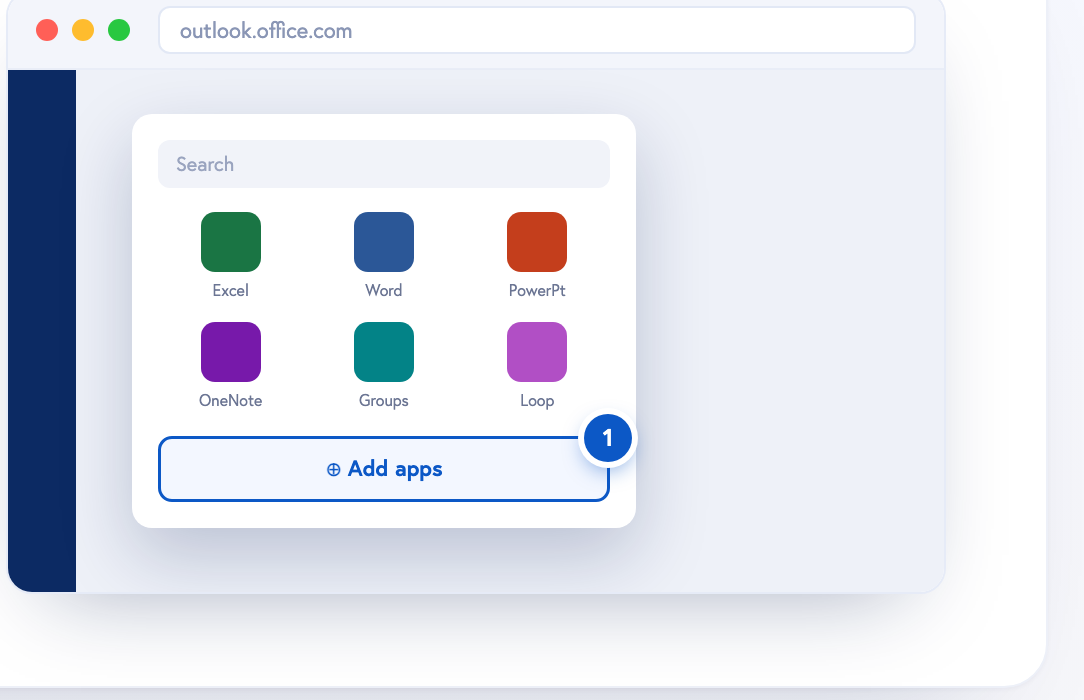 In Outlook, open the apps launcher on the left rail, then select **Add apps** to browse the store.
## Step 2: Find Scoot Engage and click "Add"
In Outlook, open the apps launcher on the left rail, then select **Add apps** to browse the store.
## Step 2: Find Scoot Engage and click "Add"
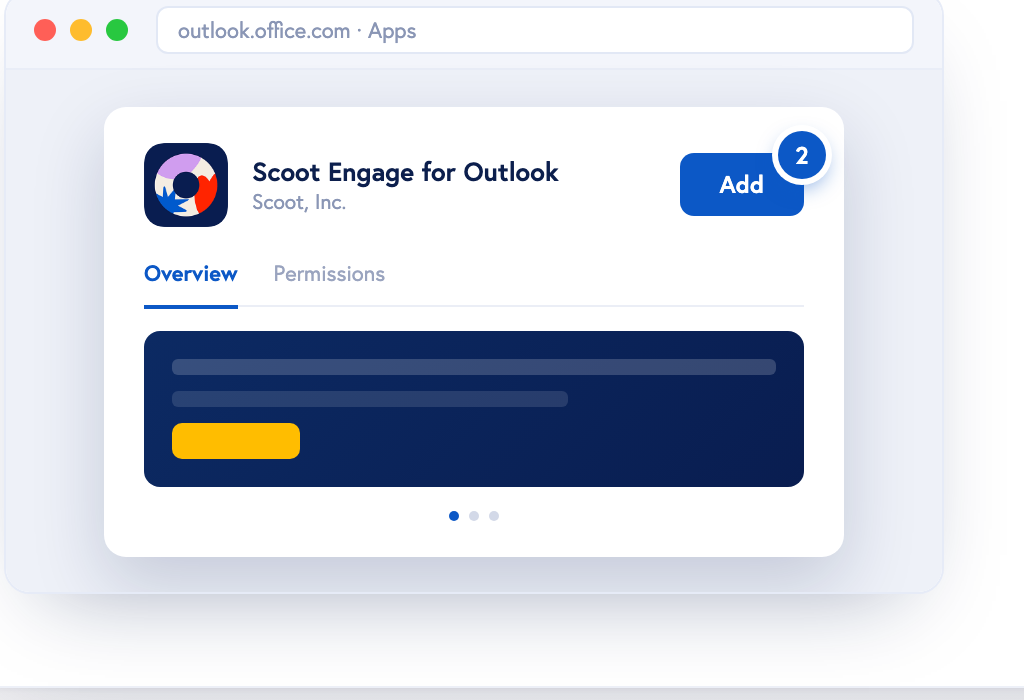 Search **Scoot**, open **Scoot Engage for Outlook** by Scoot, Inc., and click **Add** to install the add-in.
## Step 3: Open the Scoot Engage panel
Search **Scoot**, open **Scoot Engage for Outlook** by Scoot, Inc., and click **Add** to install the add-in.
## Step 3: Open the Scoot Engage panel
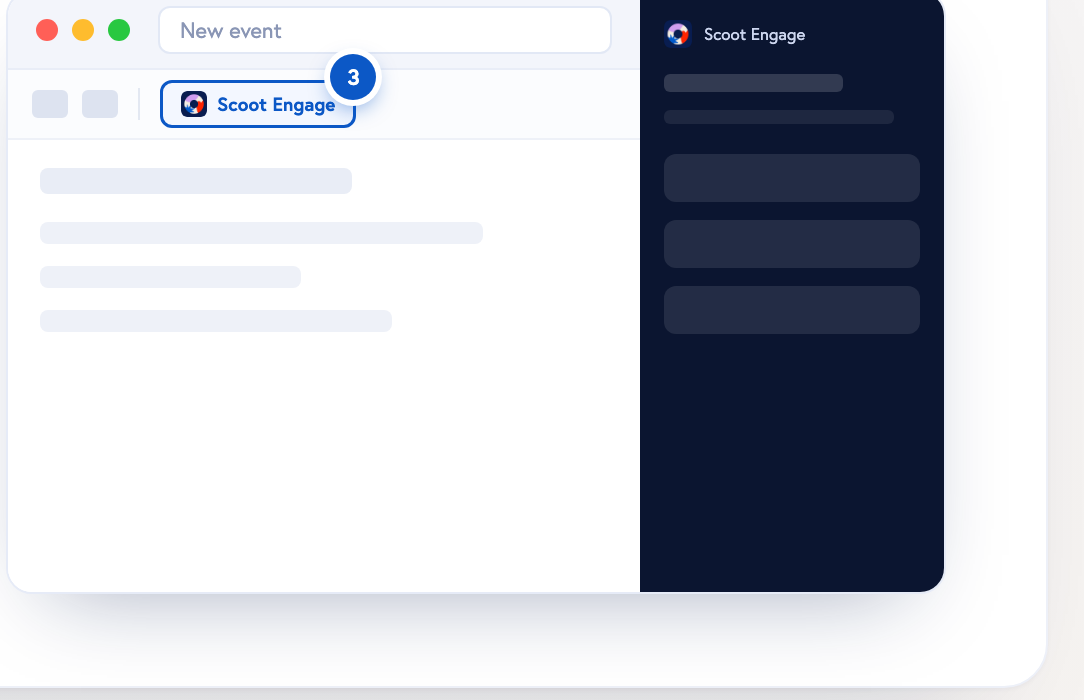 Start a **New event** in your calendar, then click **Scoot Engage for Outlook** in the event toolbar to open the side panel.
## Step 4: Sign in to your Scoot account
Start a **New event** in your calendar, then click **Scoot Engage for Outlook** in the event toolbar to open the side panel.
## Step 4: Sign in to your Scoot account
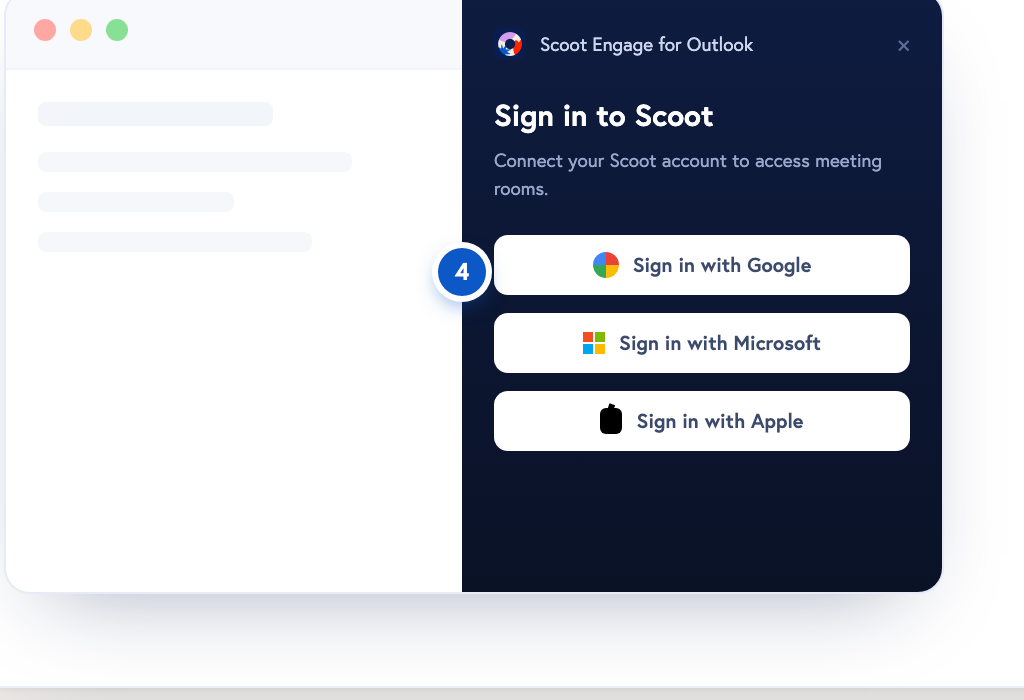 In the panel, sign in with **Google**, **Microsoft**, or **Apple** to connect your Scoot rooms.
## Step 5: Pick a room and add it to the invite
In the panel, sign in with **Google**, **Microsoft**, or **Apple** to connect your Scoot rooms.
## Step 5: Pick a room and add it to the invite
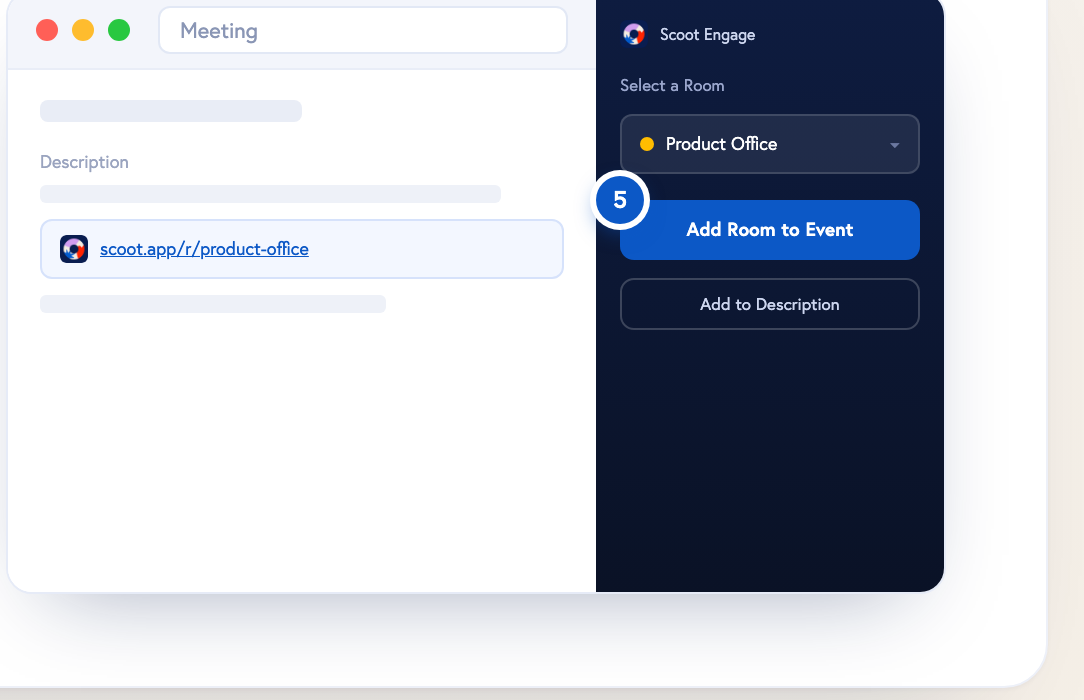 Choose a room, then click **Add Room to Event** (or **Add to Description**). Your Scoot room link drops right into the meeting — attendees can join straight from the calendar invite.
## You're all set
Setup is one-time. From now on, you can add a Scoot room to any Outlook event from the Scoot Engage panel.
## Need help?
* Docs & guides: [docs.scoot.app](https://docs.scoot.app)
* Support: [support@scoot.app](mailto:support@scoot.app)
Choose a room, then click **Add Room to Event** (or **Add to Description**). Your Scoot room link drops right into the meeting — attendees can join straight from the calendar invite.
## You're all set
Setup is one-time. From now on, you can add a Scoot room to any Outlook event from the Scoot Engage panel.
## Need help?
* Docs & guides: [docs.scoot.app](https://docs.scoot.app)
* Support: [support@scoot.app](mailto:support@scoot.app)