> ## Documentation Index
> Fetch the complete documentation index at: https://docs.scoot.app/llms.txt
> Use this file to discover all available pages before exploring further.
# Scoot Engage for Google Workspace: Calendar Setup
> Add a Scoot meeting room to any Google Calendar event. Install the **Scoot for Google Workspace** add-on once, then drop a Scoot room link into your events right from the Calendar side panel.
## Overview
Scoot for Google Workspace lets you add a Scoot video meeting room directly to your Google Calendar events. Setup takes about two minutes and only needs to be done once — after that, every event can host on Scoot.
**What you'll need**
* A Google Workspace or Gmail account
* A Scoot account (sign in with Google, Microsoft, or Apple)
## Step 1: Find Scoot in the Workspace Marketplace
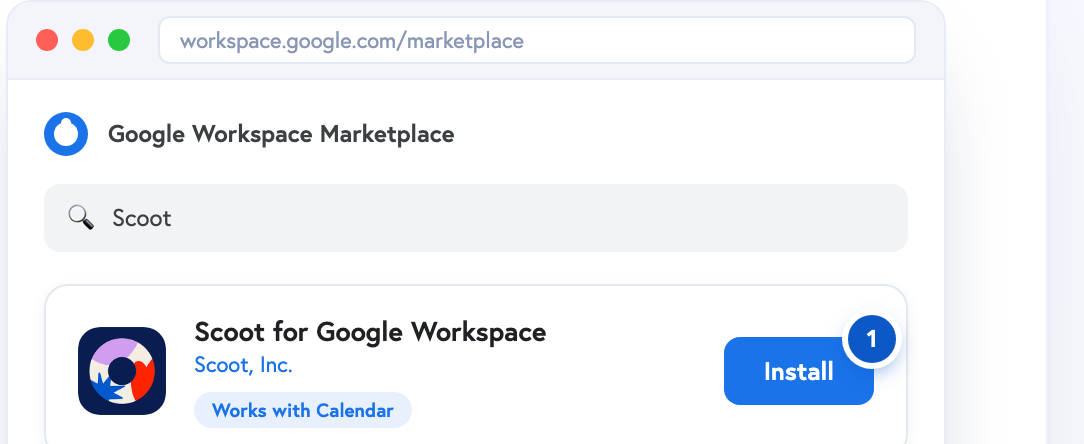 Open the **Google Workspace Marketplace**, search **Scoot**, and click **Install** on **Scoot for Google Workspace** by Scoot, Inc.
## Step 2: Open the Scoot panel in Calendar
Open the **Google Workspace Marketplace**, search **Scoot**, and click **Install** on **Scoot for Google Workspace** by Scoot, Inc.
## Step 2: Open the Scoot panel in Calendar
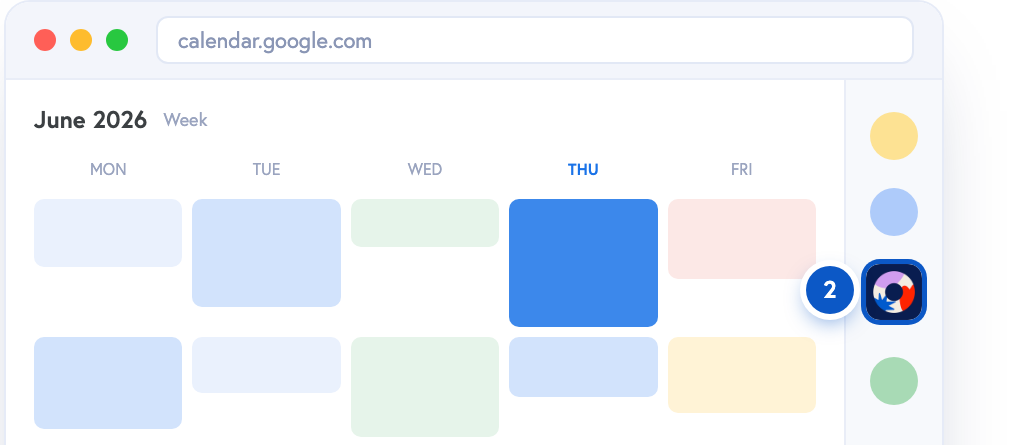 In Google Calendar, click the **Scoot icon** in the right side panel to launch the add-on.
## Step 3: Sign in to your Scoot account
In Google Calendar, click the **Scoot icon** in the right side panel to launch the add-on.
## Step 3: Sign in to your Scoot account
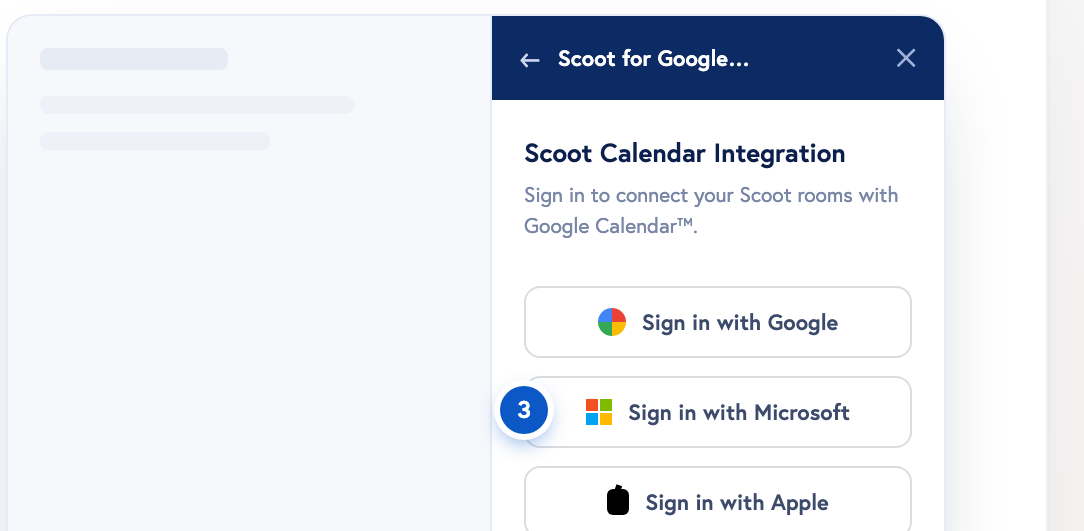 Sign in with **Google**, **Microsoft**, or **Apple** to connect your Scoot rooms to Calendar.
## Step 4: Open an event and pick your room
Sign in with **Google**, **Microsoft**, or **Apple** to connect your Scoot rooms to Calendar.
## Step 4: Open an event and pick your room
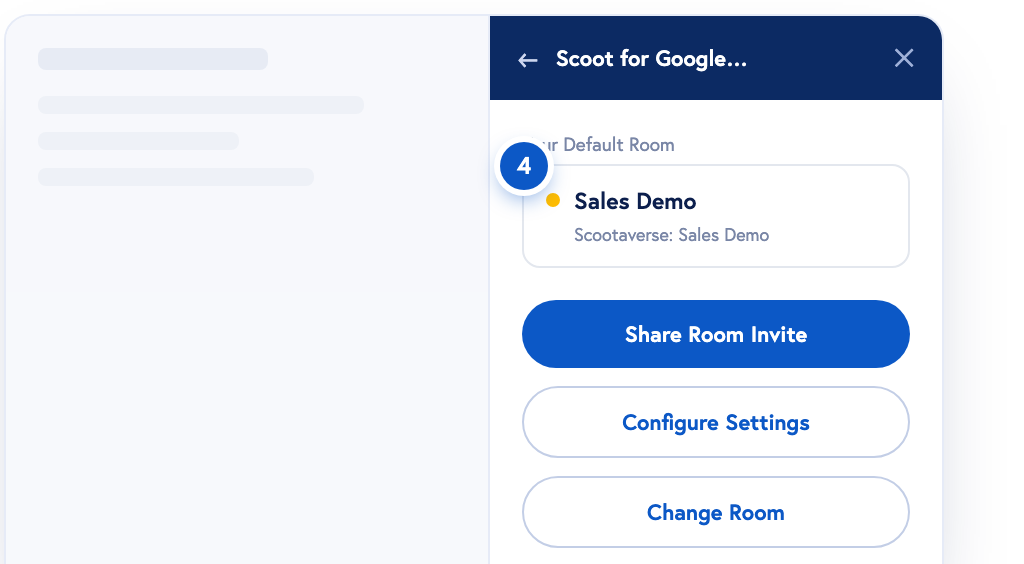 Open any event to see your **Default Room**, or click **Change Room** to choose a different Scoot space.
## Step 5: Share the room invite
Open any event to see your **Default Room**, or click **Change Room** to choose a different Scoot space.
## Step 5: Share the room invite
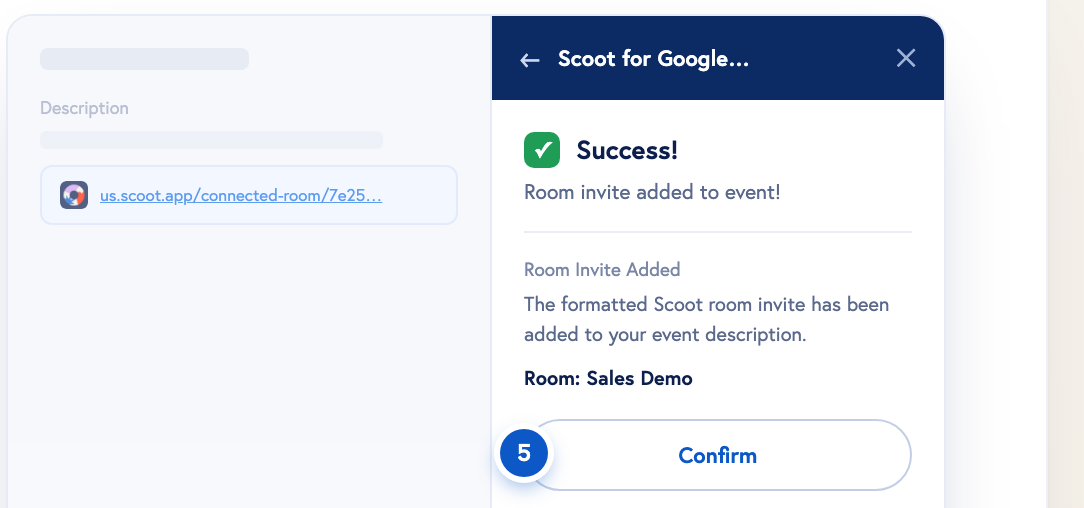 Click **Share Room Invite** and a formatted Scoot link drops straight into your event description. Click **Confirm** — attendees can now join from the calendar event.
## You're all set
Setup is one-time. From now on, you can add a Scoot room to any Google Calendar event from the Scoot side panel.
## Need help?
* Docs & guides: [docs.scoot.app](https://docs.scoot.app)
* Support: [support@scoot.app](mailto:support@scoot.app)
Click **Share Room Invite** and a formatted Scoot link drops straight into your event description. Click **Confirm** — attendees can now join from the calendar event.
## You're all set
Setup is one-time. From now on, you can add a Scoot room to any Google Calendar event from the Scoot side panel.
## Need help?
* Docs & guides: [docs.scoot.app](https://docs.scoot.app)
* Support: [support@scoot.app](mailto:support@scoot.app)