

Connect rooms
Every room you create in the same Scootaverse is connected to the others.- On Scoot Home, click Create Scootaverse, or open an existing Scootaverse.
- Create your first room. See Creating and managing Scootaverses.
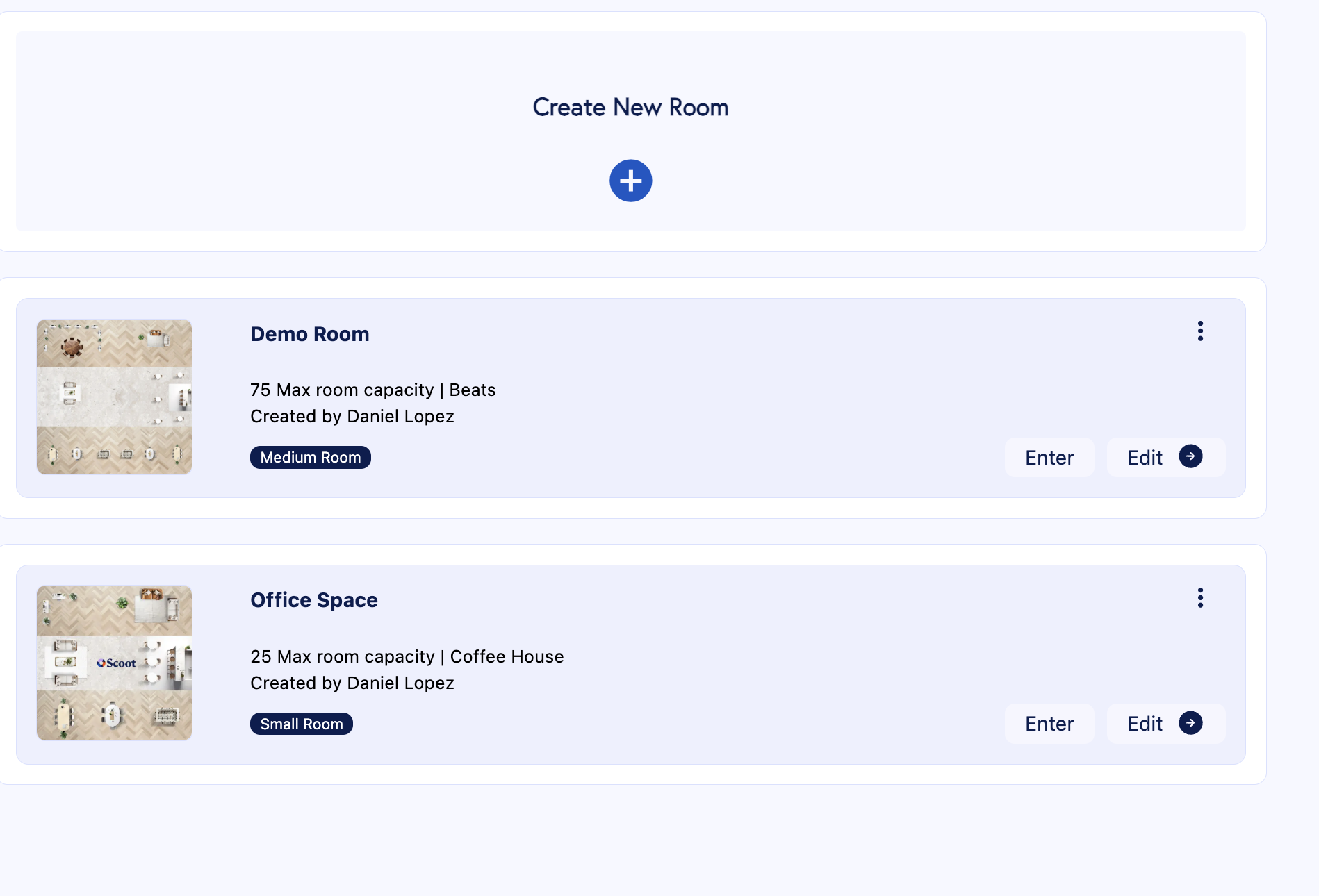
- To add another room, click Create New Room on the Scootaverse’s Rooms page.
- Set the size, background, and settings for each room.
When to use several rooms
- Your event needs more than 300 people, the size of the largest room.
- You want separate spaces with their own design, such as a main hall and breakout areas.