

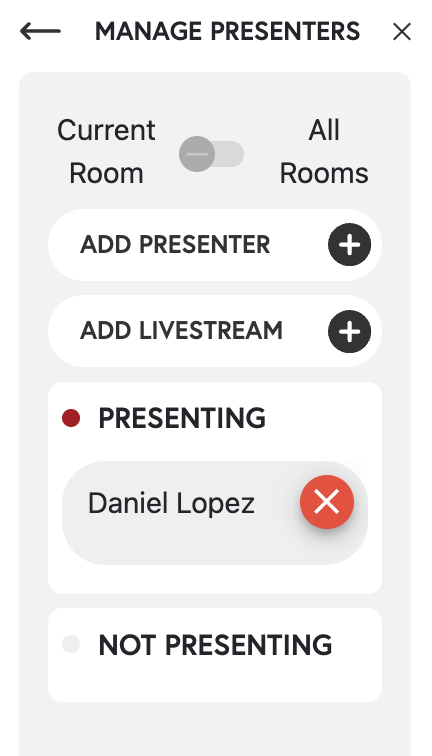
The Presenter Settings button allows the host of the room to manage presentations. From this setting, you can quickly select presenters as well as change how the presenter interacts with the audience in your Audience Settings.
Presenter Settings
From your Presentation settings, you can select Audience Settings or Manage Presenters. Your Audience Settings allow you to change the audience mode that your presentation is using. This will set the way the presenter interacts with your audience. There are 5 Audience Modes that you can use to control how the audience interact with the presenter:- Open Audience Mode - This mode allows all users to be heard during the presentation. It is ideal for small meetings with open dialogue. It is not recommended for larger meetings, as any background audio will be heard.
- Single Push To Speak Mode - This mode allowis one participant at a time to speak to the entire audience. This is ideal for structured calls with some participation from the audience.
- Many Push to Speak. This mode allows up to 4 people from the audience at a time to speak to the audience. This mode is ideal for group conversations and collaborative work.
- Raise Hand Mode - This mode is ideal for structured Q&A sessions and allows for users in the audience to “Raise their Hand”. The moderator can then see a list of users with their hands raised in the chat window and call on them or reject their request to speak.
- Restricted Mode - This mode locks down all participant audio and places the focus entirely on the presenter. In this mode, there is no way for users in the audience to interact with the presentation. It is ideal for sharing slide decks and Keynote presentations.