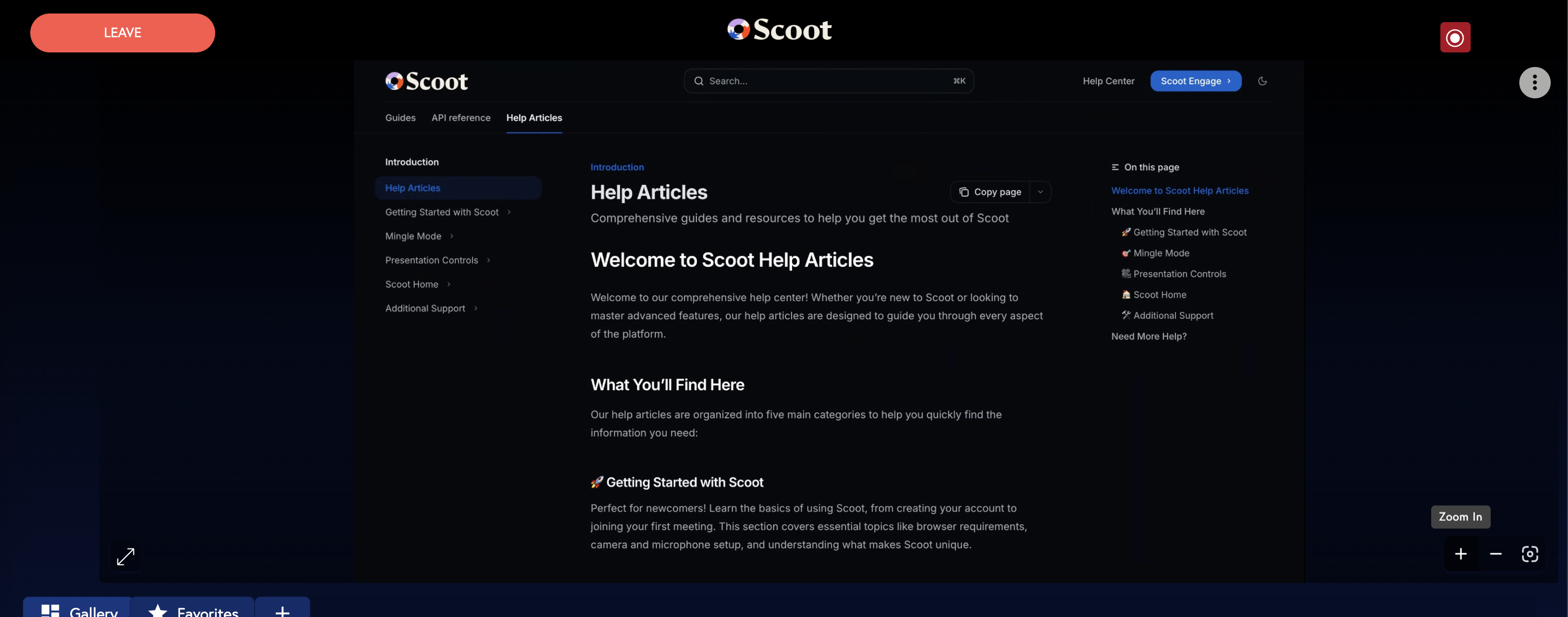
When someone is sharing their screen, you can zoom in on the shared content and make the share larger or smaller on your own screen. These controls only change your view, not what anyone else sees.
Zoom in on a shared screen
Use the zoom controls on the shared screen:
Zoom In makes the content larger.
Zoom Out makes it smaller.
Reset to Default View returns to the normal size.
Screen share zoom may not be available on every account. It also works in group screen shares.
Maximize or minimize the shared screen
On a computer, use the Maximize button on the shared screen to make it fill more of the window and hide other parts of the interface, such as the gallery. Click Minimize to return to the normal layout.On a phone or tablet, tap the full screen icon to view the share full screen, and tap x to close it.
{"docsConfig":{"theme":"mint","$schema":"https://mintlify.com/docs.json","name":"Scoot Gateway","colors":{"primary":"#0C58C6","light":"#0C58C6","dark":"#0C58C6"},"logo":{"light":"https://mintcdn.com/scoot/Pjn_MIcYVYBTMjuI/logo/scoot_logo_primary.png?fit=max\u0026auto=format\u0026n=Pjn_MIcYVYBTMjuI\u0026q=85\u0026s=ed234ebeaf52d2631bb5b37710dcf685","dark":"https://mintcdn.com/scoot/Pjn_MIcYVYBTMjuI/logo/scoot_logo_reverse.png?fit=max\u0026auto=format\u0026n=Pjn_MIcYVYBTMjuI\u0026q=85\u0026s=e62dbd8f2d5632a82012ac2eefc0f352"},"favicon":"https://mintcdn.com/scoot/Pjn_MIcYVYBTMjuI/favicon.png?fit=max\u0026auto=format\u0026n=Pjn_MIcYVYBTMjuI\u0026q=85\u0026s=48331cf275b3a86018b63b70910c944f","api":{"mdx":{"server":"https://dev-api.social-ops.net"}},"appearance":{"default":"light","strict":false},"navbar":{"links":[{"href":"https://us.scoot.app/knowledge-base","label":"Help Center"}],"primary":{"type":"button","label":"Scoot Engage","href":"https://us.scoot.app/"}},"footer":{"socials":{"website":"https://scoot.app","linkedin":"https://www.linkedin.com/company/scootmeeting"}},"contextual":{"options":["copy","view","chatgpt","claude","perplexity","mcp","cursor","vscode"],"display":"header"},"styling":{"latex":false},"navigation":{"pages":[]}},"deployment":{"deploymentMetadataValue":{"subdomain":"scoot","hasAudioNarration":false,"actualSubdomain":"scoot","customDomains":["docs.scoot.app"],"gitSource":{"type":"github","owner":"preciate","repo":"api-gateway-docs","deployBranch":"main","contentDirectory":"","isPrivate":true,"mountPath":"","label":""},"entitlements":{},"buildId":"6aecce3d22bd4984bfe8e2b8","clientVersion":"0.0.4143","searchFilterCounts":[{"language":"default","tag":"Help Articles","count":100},{"language":"default","tag":"Introduction","count":100},{"language":"default","tag":"API reference","count":73},{"language":"default","tag":"Mingle Mode","count":22},{"language":"default","tag":"Additional Support","count":19},{"language":"default","tag":"Getting Started with Scoot","count":19},{"language":"default","tag":"Scoot Home","count":19},{"language":"default","tag":"Social","count":15},{"language":"default","tag":"Presentation Controls","count":13},{"language":"default","tag":"Event","count":10}]},"assistantConfig":{},"basePath":"","hasChatPermissions":false,"hasWebMcpPermissions":false,"toggles":[],"googleFontsInlined":false},"customCss":[],"page":{"pagePath":"help-articles/presentation-controls/using-screen-share-zoom-and-maximizeminimize-in-scoot","slug":"/help-articles/presentation-controls/using-screen-share-zoom-and-maximizeminimize-in-scoot","pageMetadata":{"title":"Using screen share zoom and maximize/minimize","page_id":294846465,"description":null,"href":"/help-articles/presentation-controls/using-screen-share-zoom-and-maximizeminimize-in-scoot"},"pageType":"default","mdx":{"mdxSource":{"compiledSource":"\"use strict\";const{Fragment:_Fragment,jsx:_jsx,jsxs:_jsxs}=arguments[0];const{useMDXComponents:_provideComponents}=arguments[0];function _createMdxContent(props){const _components={a:`a`,li:`li`,p:`p`,strong:`strong`,ul:`ul`,..._provideComponents(),...props.components},{Heading,Note,OptimizedImage}=_components;if(!Heading)_missingMdxReference(`Heading`,true);if(!Note)_missingMdxReference(`Note`,true);if(!OptimizedImage)_missingMdxReference(`OptimizedImage`,true);return _jsxs(_Fragment,{children:[_jsx(_components.p,{children:`When someone is sharing their screen, you can zoom in on the shared content and make the share larger or smaller on your own screen. These controls only change your view, not what anyone else sees.`}),`\n`,_jsx(OptimizedImage,{src:`https://mintlify.s3.us-west-1.amazonaws.com/scoot/images/help-articles/Presentation%20Controls/screen-share-zoom-maximize.png`,alt:`Zoom and maximize controls on a shared screen`,width:`600`,style:{maxWidth:`600px`}}),`\n`,_jsx(Heading,{level:`2`,id:`zoom-in-on-a-shared-screen`,children:`Zoom in on a shared screen`}),`\n`,_jsx(_components.p,{children:`Use the zoom controls on the shared screen:`}),`\n`,_jsxs(_components.ul,{children:[`\n`,_jsxs(_components.li,{children:[_jsx(_components.strong,{children:`Zoom In`}),` makes the content larger.`]}),`\n`,_jsxs(_components.li,{children:[_jsx(_components.strong,{children:`Zoom Out`}),` makes it smaller.`]}),`\n`,_jsxs(_components.li,{children:[_jsx(_components.strong,{children:`Reset to Default View`}),` returns to the normal size.`]}),`\n`]}),`\n`,_jsx(Note,{children:_jsx(_components.p,{children:`Screen share zoom may not be available on every account. It also works in group screen shares.`})}),`\n`,_jsx(Heading,{level:`2`,id:`maximize-or-minimize-the-shared-screen`,children:`Maximize or minimize the shared screen`}),`\n`,_jsxs(_components.p,{children:[`On a computer, use the `,_jsx(_components.strong,{children:`Maximize`}),` button on the shared screen to make it fill more of the window and hide other parts of the interface, such as the gallery. Click `,_jsx(_components.strong,{children:`Minimize`}),` to return to the normal layout.`]}),`\n`,_jsxs(_components.p,{children:[`On a phone or tablet, tap the full screen icon to view the share full screen, and tap `,_jsx(_components.strong,{children:`x`}),` to close it.`]}),`\n`,_jsx(Heading,{level:`2`,id:`related-articles`,children:`Related articles`}),`\n`,_jsxs(_components.ul,{children:[`\n`,_jsx(_components.li,{children:_jsx(_components.a,{href:`/help-articles/presentation-controls/presentation-screen-sharing`,children:`Presentation screen sharing`})}),`\n`,_jsx(_components.li,{children:_jsx(_components.a,{href:`/help-articles/presentation-controls/additional-presentation-controls-pop-out-presenters-and-hiding-presenters`,children:`Pop-out presenters and hiding your camera`})}),`\n`]})]})}function MDXContent(props={}){const{wrapper:MDXLayout}={..._provideComponents(),...props.components};return MDXLayout?_jsx(MDXLayout,{...props,children:_jsx(_createMdxContent,{...props})}):_createMdxContent(props)}return{default:MDXContent};function _missingMdxReference(id,component){throw new Error(`Expected `+(component?`component`:`object`)+\" `\"+id+\"` to be defined: you likely forgot to import, pass, or provide it.\")}","frontmatter":{},"scope":{"config":{},"pageMetadata":{"title":"Using screen share zoom and maximize/minimize","page_id":294846465,"description":null,"href":"/help-articles/presentation-controls/using-screen-share-zoom-and-maximizeminimize-in-scoot"}}},"mdxSourceWithNoJs":null},"mdxExtracts":{"tableOfContents":[{"title":"Zoom in on a shared screen","slug":"zoom-in-on-a-shared-screen","depth":2,"children":[]},{"title":"Maximize or minimize the shared screen","slug":"maximize-or-minimize-the-shared-screen","depth":2,"children":[]},{"title":"Related articles","slug":"related-articles","depth":2,"children":[]}],"codeExamples":{}},"jsLinks":[],"subdomain":"scoot","siteName":"Scoot Gateway","title":"Using screen share zoom and maximize/minimize - Scoot Gateway","navMaps":{"firstHrefInVersion":{},"firstHrefInLanguage":{}},"lastModified":"2026-11-05T18:43:51.192Z","originalFileLocation":"help-articles/presentation-controls/using-screen-share-zoom-and-maximizeminimize-in-scoot.md"},"headHtml":"\u003cscript data-mint-head>(function(){var d=document.documentElement,p=null;if(!p){try{p=localStorage.getItem(\"isDarkMode\")}catch(e){}if(p==='true')p='dark';else if(p==='false')p='light';if(p!=='light'\u0026\u0026p!=='dark'\u0026\u0026p!=='system')p=\"light\"}var r=p==='system'?(matchMedia(\"(prefers-color-scheme: dark)\").matches?'dark':'light'):p;d.classList.remove(r==='dark'?'light':'dark');d.classList.add(r);d.setAttribute(\"data-theme-preference\",p)})();\u003c/script>\u003cmeta data-mint-head name=\"application-name\" content=\"Scoot Gateway\">\u003cmeta data-mint-head name=\"generator\" content=\"Mintlify\">\u003clink data-mint-head rel=\"icon\" type=\"image/png\" sizes=\"192x192\" href=\"/mintlify-assets/_mintlify/favicons/scoot/c0qW2xbIKqqu8SNU/_generated/favicon/android-chrome-192x192.png\" media=\"(prefers-color-scheme: light)\">\u003clink data-mint-head rel=\"apple-touch-icon\" type=\"image/png\" sizes=\"180x180\" href=\"/mintlify-assets/_mintlify/favicons/scoot/c0qW2xbIKqqu8SNU/_generated/favicon/apple-touch-icon.png\">\u003clink data-mint-head rel=\"icon\" type=\"image/png\" sizes=\"16x16\" href=\"/mintlify-assets/_mintlify/favicons/scoot/c0qW2xbIKqqu8SNU/_generated/favicon/favicon-16x16.png\" media=\"(prefers-color-scheme: light)\">\u003clink data-mint-head rel=\"icon\" type=\"image/png\" sizes=\"32x32\" href=\"/mintlify-assets/_mintlify/favicons/scoot/c0qW2xbIKqqu8SNU/_generated/favicon/favicon-32x32.png\" media=\"(prefers-color-scheme: light)\">\u003clink data-mint-head rel=\"shortcut icon\" type=\"image/x-icon\" href=\"/mintlify-assets/_mintlify/favicons/scoot/c0qW2xbIKqqu8SNU/_generated/favicon/favicon.ico\" media=\"(prefers-color-scheme: light)\">\u003clink data-mint-head rel=\"icon\" type=\"image/png\" sizes=\"192x192\" href=\"/mintlify-assets/_mintlify/favicons/scoot/c0qW2xbIKqqu8SNU/_generated/favicon-dark/android-chrome-192x192.png\" media=\"(prefers-color-scheme: dark)\">\u003clink data-mint-head rel=\"icon\" type=\"image/png\" sizes=\"16x16\" href=\"/mintlify-assets/_mintlify/favicons/scoot/c0qW2xbIKqqu8SNU/_generated/favicon-dark/favicon-16x16.png\" media=\"(prefers-color-scheme: dark)\">\u003clink data-mint-head rel=\"icon\" type=\"image/png\" sizes=\"32x32\" href=\"/mintlify-assets/_mintlify/favicons/scoot/c0qW2xbIKqqu8SNU/_generated/favicon-dark/favicon-32x32.png\" media=\"(prefers-color-scheme: dark)\">\u003clink data-mint-head rel=\"shortcut icon\" type=\"image/x-icon\" href=\"/mintlify-assets/_mintlify/favicons/scoot/c0qW2xbIKqqu8SNU/_generated/favicon-dark/favicon.ico\" media=\"(prefers-color-scheme: dark)\">\u003cmeta data-mint-head property=\"og:title\" content=\"Using screen share zoom and maximize/minimize - Scoot Gateway\">\u003cmeta data-mint-head property=\"og:site_name\" content=\"Scoot Gateway\">\u003cmeta data-mint-head property=\"og:url\" content=\"https://docs.scoot.app/help-articles/presentation-controls/using-screen-share-zoom-and-maximizeminimize-in-scoot\">\u003cmeta data-mint-head property=\"og:type\" content=\"website\">\u003cmeta data-mint-head property=\"og:image\" content=\"https://scoot.mintlify.site/_mintlify/api/og/v2?division=Presentation+Controls\u0026amp;title=Using+screen+share+zoom+and+maximize%2Fminimize\u0026amp;theme=537aa628e5f225d337ce4efc\u0026amp;signature=ee74240a25a2e392dfc8936b9e5cfd6286558dc22485a6c002e044038fd9c5c9\">\u003cmeta data-mint-head property=\"og:image:width\" content=\"1200\">\u003cmeta data-mint-head property=\"og:image:height\" content=\"630\">\u003cmeta data-mint-head name=\"twitter:card\" content=\"summary_large_image\">\u003cmeta data-mint-head name=\"twitter:title\" content=\"Using screen share zoom and maximize/minimize - Scoot Gateway\">\u003cmeta data-mint-head name=\"twitter:image\" content=\"https://scoot.mintlify.site/_mintlify/api/og/v2?division=Presentation+Controls\u0026amp;title=Using+screen+share+zoom+and+maximize%2Fminimize\u0026amp;theme=537aa628e5f225d337ce4efc\u0026amp;signature=ee74240a25a2e392dfc8936b9e5cfd6286558dc22485a6c002e044038fd9c5c9\">\u003cmeta data-mint-head name=\"twitter:image:width\" content=\"1200\">\u003cmeta data-mint-head name=\"twitter:image:height\" content=\"630\">\u003cmeta data-mint-head name=\"msapplication-config\" content=\"/mintlify-assets/_mintlify/favicons/scoot/c0qW2xbIKqqu8SNU/_generated/favicon/browserconfig.xml\">\u003cmeta data-mint-head name=\"apple-mobile-web-app-title\" content=\"Scoot Gateway\">\u003cmeta data-mint-head name=\"msapplication-TileColor\" content=\"#0C58C6\">\u003clink data-mint-head rel=\"canonical\" href=\"https://docs.scoot.app/help-articles/presentation-controls/using-screen-share-zoom-and-maximizeminimize-in-scoot\">\u003clink data-mint-head rel=\"alternate\" type=\"application/xml\" href=\"/sitemap.xml\">\u003clink data-mint-head rel=\"alternate\" type=\"text/markdown\" href=\"/help-articles/presentation-controls/using-screen-share-zoom-and-maximizeminimize-in-scoot.md\">\u003cscript data-mint-head type=\"application/ld+json\">{\"@context\":\"https://schema.org\",\"@graph\":[{\"@type\":\"Organization\",\"@id\":\"https://docs.scoot.app/#organization\",\"name\":\"Scoot Gateway\",\"url\":\"https://docs.scoot.app\",\"logo\":{\"@type\":\"ImageObject\",\"url\":\"https://mintcdn.com/scoot/Pjn_MIcYVYBTMjuI/logo/scoot_logo_primary.png?fit=max\u0026auto=format\u0026n=Pjn_MIcYVYBTMjuI\u0026q=85\u0026s=ed234ebeaf52d2631bb5b37710dcf685\"}},{\"@type\":\"WebSite\",\"@id\":\"https://docs.scoot.app#website\",\"name\":\"Scoot Gateway\",\"url\":\"https://docs.scoot.app\",\"publisher\":{\"@id\":\"https://docs.scoot.app/#organization\"}},{\"@type\":\"WebPage\",\"@id\":\"https://docs.scoot.app/help-articles/presentation-controls/using-screen-share-zoom-and-maximizeminimize-in-scoot#webpage\",\"url\":\"https://docs.scoot.app/help-articles/presentation-controls/using-screen-share-zoom-and-maximizeminimize-in-scoot\",\"name\":\"Using screen share zoom and maximize/minimize\",\"dateModified\":\"2026-11-05T18:43:51.192Z\",\"isPartOf\":{\"@id\":\"https://docs.scoot.app#website\"},\"breadcrumb\":{\"@id\":\"https://docs.scoot.app/help-articles/presentation-controls/using-screen-share-zoom-and-maximizeminimize-in-scoot#breadcrumb\"}},{\"@type\":\"BreadcrumbList\",\"@id\":\"https://docs.scoot.app/help-articles/presentation-controls/using-screen-share-zoom-and-maximizeminimize-in-scoot#breadcrumb\",\"itemListElement\":[{\"@type\":\"ListItem\",\"position\":1,\"name\":\"Introduction\",\"item\":\"https://docs.scoot.app/help-articles\"},{\"@type\":\"ListItem\",\"position\":2,\"name\":\"Presentation Controls\",\"item\":\"https://docs.scoot.app/help-articles/presentation-controls/presentations\"},{\"@type\":\"ListItem\",\"position\":3,\"name\":\"Using screen share zoom and maximize/minimize\",\"item\":\"https://docs.scoot.app/help-articles/presentation-controls/using-screen-share-zoom-and-maximizeminimize-in-scoot\"}]},{\"@type\":[\"Article\",\"TechArticle\"],\"@id\":\"https://docs.scoot.app/help-articles/presentation-controls/using-screen-share-zoom-and-maximizeminimize-in-scoot#article\",\"headline\":\"Using screen share zoom and maximize/minimize\",\"name\":\"Using screen share zoom and maximize/minimize\",\"url\":\"https://docs.scoot.app/help-articles/presentation-controls/using-screen-share-zoom-and-maximizeminimize-in-scoot\",\"mainEntityOfPage\":{\"@id\":\"https://docs.scoot.app/help-articles/presentation-controls/using-screen-share-zoom-and-maximizeminimize-in-scoot#webpage\"},\"dateModified\":\"2026-11-05T18:43:51.192Z\",\"publisher\":{\"@id\":\"https://docs.scoot.app/#organization\"},\"isPartOf\":{\"@id\":\"https://docs.scoot.app#website\"}}]}\u003c/script>\u003cscript data-mint-head type=\"application/ld+json\">{\"@context\":\"https://schema.org\",\"@type\":\"WebSite\",\"name\":\"Scoot Gateway\",\"publisher\":{\"@type\":\"Organization\",\"name\":\"Scoot Gateway\"},\"provider\":{\"@type\":\"Organization\",\"name\":\"Mintlify\",\"url\":\"https://mintlify.com\"}}\u003c/script>","agentPointerHref":"/help-articles/presentation-controls/using-screen-share-zoom-and-maximizeminimize-in-scoot.md","siteName":"Scoot Gateway","nav":{"global":null,"tabs":[{"tab":"Guides","pages":[{"title":"Guides","href":""}]},{"tab":"API reference","pages":[{"title":"API reference","href":"/api-reference/introduction"}]},{"tab":"Help Articles","groups":[{"group":"Introduction","pages":[{"title":"Help Articles","href":"/help-articles"},{"group":"Getting Started with Scoot","pages":[{"title":"Approved browsers and devices","href":"/help-articles/getting-started-with-scoot/approved-browsers-and-devices"},{"title":"Scoot desktop app","href":"/help-articles/getting-started-with-scoot/scoot-desktop-app"},{"title":"Scoot Best Practices Guide","href":"/help-articles/getting-started-with-scoot/best-practices"},{"title":"Camera, Microphone, \u0026 Speaker Settings on Scoot","href":"/help-articles/getting-started-with-scoot/camera-microphone-speaker-settings-on-scoot"},{"title":"Changing Your Password in Scoot","href":"/help-articles/getting-started-with-scoot/changing-your-password-in-scoot"},{"title":"Changing Your Profile Picture","href":"/help-articles/getting-started-with-scoot/changing-your-profile-picture"},{"title":"Configuring Cam and Mic Settings on Browser for Scoot","href":"/help-articles/getting-started-with-scoot/configuring-cam-and-mic-settings-on-browser-for-scoot"},{"title":"Connecting your calendar","href":"/help-articles/getting-started-with-scoot/connecting-your-calendar"},{"title":"Entering a Scoot Meeting or Webinar","href":"/help-articles/getting-started-with-scoot/entering-a-scoot-meeting-or-webinar"},{"title":"New User Guide","href":"/help-articles/getting-started-with-scoot/new-user-guide"},{"title":"Scoot Engage for Outlook: Calendar Setup","href":"/help-articles/getting-started-with-scoot/scoot-engage-for-outlook-calendar-setup"},{"title":"Scoot Events and Registration Guide","href":"/help-articles/getting-started-with-scoot/scoot-events-and-registration-guide"},{"title":"Scoot Engage for Google Workspace: Calendar Setup","href":"/help-articles/getting-started-with-scoot/scoot-for-google-workspace-calendar-setup"},{"title":"Scoot Integrations Guide","href":"/help-articles/getting-started-with-scoot/scoot-integrations-guide"},{"title":"Scoot Onboarding Tutorial: Your Guide to Getting Started","href":"/help-articles/getting-started-with-scoot/scoot-onboarding-tutorial-your-guide-to-getting-started"},{"title":"Scoot Sign Up","href":"/help-articles/getting-started-with-scoot/scoot-sign-up"},{"title":"Sign-in methods","href":"/help-articles/getting-started-with-scoot/sign-in-methods"},{"title":"Welcome toast for Hosts","href":"/help-articles/getting-started-with-scoot/welcome-toast-for-hosts"},{"title":"What is Scoot Engage?","href":"/help-articles/getting-started-with-scoot/what-is-scoot-engage"}]},{"group":"AI features","pages":[{"title":"Live Advisor","href":"/help-articles/ai-features/live-advisor"},{"title":"Live Advisor Anywhere","href":"/help-articles/ai-features/live-advisor-anywhere"},{"title":"Practice a sales call","href":"/help-articles/ai-features/practice-a-sales-call"},{"title":"Live In-Room Agent","href":"/help-articles/ai-features/live-in-room-agent"},{"title":"The Brain","href":"/help-articles/ai-features/the-brain"},{"title":"Deep Journey","href":"/help-articles/ai-features/deep-journey"},{"title":"Magic Host chat","href":"/help-articles/ai-features/magic-host-chat"}]},{"group":"Mingle Mode","pages":[{"title":"Audio Groups in Scoot","href":"/help-articles/mingle-mode/audio-groups-in-scoot"},{"title":"Enabling Closed Captions on Scoot","href":"/help-articles/mingle-mode/enabling-closed-captions-on-scoot"},{"title":"Favoriting in Scoot","href":"/help-articles/mingle-mode/favoriting-in-scoot"},{"title":"Finding an Attendee with Search and Teleport","href":"/help-articles/mingle-mode/finding-an-attendee-search-and-teleport"},{"title":"Introducing Ice Breakers","href":"/help-articles/mingle-mode/introducing-ice-breakers"},{"title":"Meeting Summaries","href":"/help-articles/mingle-mode/meeting-summaries"},{"title":"Minimap Controls","href":"/help-articles/mingle-mode/minimap-controls"},{"title":"Movement in Scoot","href":"/help-articles/mingle-mode/movement-in-scoot"},{"title":"Music Controls","href":"/help-articles/mingle-mode/music-controls"},{"title":"Muting other participants","href":"/help-articles/mingle-mode/muting-other-participants"},{"title":"Muting your Camera and Microphone in Scoot","href":"/help-articles/mingle-mode/muting-your-camera-and-microphone-in-scoot"},{"title":"Room Sizes in Scoot","href":"/help-articles/mingle-mode/room-sizes-in-scoot"},{"title":"Room Zoom Feature","href":"/help-articles/mingle-mode/room-zoom-feature"},{"title":"Raise your hand and Q\u0026A","href":"/help-articles/mingle-mode/raise-your-hand-and-q-and-a"},{"title":"Scoot Chat","href":"/help-articles/mingle-mode/scoot-chat"},{"title":"Temporary Host Access","href":"/help-articles/mingle-mode/temporary-host-access"},{"title":"Toast Mode in Scoot","href":"/help-articles/mingle-mode/toast-mode-in-scoot"},{"title":"Uploading Room Items","href":"/help-articles/mingle-mode/uploading-room-items"},{"title":"Using Reactions in Scoot","href":"/help-articles/mingle-mode/using-reactions-in-scoot"},{"title":"Using the Photo Booth","href":"/help-articles/mingle-mode/using-the-photo-booth"},{"title":"Virtual Backgrounds","href":"/help-articles/mingle-mode/virtual-backgrounds"},{"title":"Visual Indicators","href":"/help-articles/mingle-mode/visual-indicators"}]},{"group":"Presentation Controls","pages":[{"title":"Presentations","href":"/help-articles/presentation-controls/presentations"},{"title":"Meeting Mode and presentation modes","href":"/help-articles/presentation-controls/meeting-mode-and-presentation-modes"},{"title":"Managing presenters","href":"/help-articles/presentation-controls/managing-presenters"},{"title":"Audience settings","href":"/help-articles/presentation-controls/what-are-audience-settings-and-how-do-i-use-them"},{"title":"Using the presentation gallery","href":"/help-articles/presentation-controls/sorting-your-gallery-on-scoot"},{"title":"Presentation screen sharing","href":"/help-articles/presentation-controls/presentation-screen-sharing"},{"title":"Sharing video during presentations","description":null,"href":"/help-articles/presentation-controls/sharing-video-streams-during-presentations"},{"title":"Using screen share zoom and maximize/minimize","href":"/help-articles/presentation-controls/using-screen-share-zoom-and-maximizeminimize-in-scoot"},{"title":"Pop-out presenters and hiding your camera","description":null,"href":"/help-articles/presentation-controls/additional-presentation-controls-pop-out-presenters-and-hiding-presenters"},{"title":"Group screen share","href":"/help-articles/presentation-controls/what-is-group-screen-share-and-how-do-i-use-it"},{"title":"Presentation recording","href":"/help-articles/presentation-controls/presentation-recording"},{"title":"Live streaming in Scoot","href":"/help-articles/presentation-controls/live-streaming-in-scoot"},{"title":"Understanding Scoot Pricing","href":"/help-articles/presentation-controls/understanding-scoot-pricing"}]},{"group":"Scoot Home","pages":[{"title":"Creating and managing Scootaverses","href":"/help-articles/scoot-home/creating-and-managing-scootaverses"},{"title":"Adjusting Maximum Size of Audio Groups","href":"/help-articles/scoot-home/adjusting-maximum-size-of-audio-groups"},{"title":"Alternate Hosts","href":"/help-articles/scoot-home/alternate-hosts"},{"title":"Backgrounds","href":"/help-articles/scoot-home/backgrounds"},{"title":"Clickable Room Items","href":"/help-articles/scoot-home/clickable-room-items"},{"title":"Creating Multi-Room Scootaverse","href":"/help-articles/scoot-home/creating-multi-room-scootaverse"},{"title":"Enabling guest entry","href":"/help-articles/scoot-home/enabling-guest-entry"},{"title":"Inviting guests to your Scootaverse","href":"/help-articles/scoot-home/inviting-guests-to-your-scootaverse"},{"title":"Require Host Admission","href":"/help-articles/scoot-home/require-host-admission"},{"title":"Room Entry Flows","href":"/help-articles/scoot-home/room-entry-flows"},{"title":"Room Settings","href":"/help-articles/scoot-home/room-settings"},{"title":"Scoot Support for Mobile Devices","href":"/help-articles/scoot-home/scoot-support-for-mobile-devices"},{"title":"Scootaverse Design Guide","href":"/help-articles/scoot-home/scootaverse-design-guide"},{"title":"Smart Badging","href":"/help-articles/scoot-home/smart-badging"},{"title":"Updating your web browser for Scoot","href":"/help-articles/scoot-home/updating-your-google-chrome-safari-or-microsoft-edge-web-browser-for-scoot"},{"title":"Finding your meetings, recordings, and summaries","href":"/help-articles/scoot-home/meetings"},{"title":"Managing users (admins)","href":"/help-articles/scoot-home/managing-users"},{"title":"Account profile (admins)","href":"/help-articles/scoot-home/account-profile"},{"title":"Connecting Salesforce or HubSpot (admins)","href":"/help-articles/scoot-home/connecting-salesforce-or-hubspot"}]},{"group":"Additional Support","pages":[{"title":"Contact us for additional support","href":"/help-articles/additional-support/contact-us-for-additional-support"},{"title":"Getting help with the Knowledge Base assistant","href":"/help-articles/additional-support/getting-help-with-the-knowledge-base-assistant"},{"title":"Echo and Feedback issues on Scoot","href":"/help-articles/additional-support/echo-and-feedback-issues-on-scoot"},{"title":"Embedding Scoot into your Platform","href":"/help-articles/additional-support/embedding-scoot-into-your-platform"},{"title":"General FAQs","href":"/help-articles/additional-support/general-faqs"},{"title":"How do I close or delete my account?","href":"/help-articles/additional-support/how-do-i-close-or-delete-my-account"},{"title":"How do I enable my browser's hardware acceleration?","href":"/help-articles/additional-support/how-do-i-enable-my-browser-s-hardware-acceleration"},{"title":"IT Network Preparation Guide","href":"/help-articles/additional-support/it-network-preparation-guide"},{"title":"Common problems and solutions","href":"/help-articles/additional-support/scoot-common-product-problems-and-solutions"},{"title":"Scoot How-To Guides","href":"/help-articles/additional-support/scoot-how-to-guides"},{"title":"Scoot Technical FAQ","href":"/help-articles/additional-support/scoot-technical-faq"},{"title":"Scoot Hosting Guide","href":"/help-articles/additional-support/scoot-hosting-guide"},{"title":"Scoot Hybrid Meetings Guide","href":"/help-articles/additional-support/scoot-hybrid-meetings-guide"},{"title":"Scoot Security and Privacy","href":"/help-articles/additional-support/scoot-security-and-privacy"},{"title":"Security and Privacy","href":"/help-articles/additional-support/security-and-privacy"},{"title":"Scoot Technical Information FAQs Sheet","href":"/help-articles/additional-support/technical-information"},{"title":"Troubleshooting Guide","href":"/help-articles/additional-support/troubleshooting-guide"},{"title":"Understanding Screen Share Errors","href":"/help-articles/additional-support/understanding-screen-share-errors"},{"title":"Recording Capabilities","href":"/help-articles/additional-support/recording-capabilities"}]}]}]}]},"basePath":"","title":"Using screen share zoom and maximize/minimize - Scoot Gateway","buildId":"dpl_Fyv1NbzwP68g2bEH2Roy98uY1zmE","deploymentId":"dpl_Fyv1NbzwP68g2bEH2Roy98uY1zmE","dynamics":["a74be98ba7"],"chunks":["zoom-image-lightbox-BbK2OBGL.js","lightbox-handle-r17bVUz3.js"]}