

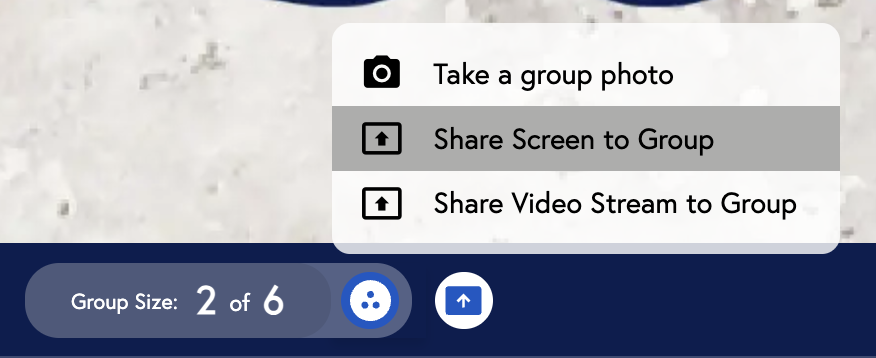
Share your screen with your group
- Join an audio group by moving close to other people in the room.
- Click the group button in the toolbar (tooltip Group Activities).
- Click Share Screen to Group, or Share Video Stream to Group to share a video with sound.
- Choose what to share in your browser’s prompt and click Share.
Join or leave a group share
People who move close to your group can join it and see your share (Join group share). When someone walks away from the group, the share disappears for them. They can rejoin by moving back. To leave a group on purpose, use Leave group in the Group Activities menu.Other group options
The Group Activities menu can also include, depending on your room’s settings:- Take a group photo: see Using the photo booth.
- Make Group Public, View Request Queue and Enable Special Access Control: options for controlling who can join your group.
Turning group screen share on
Hosts control this per room with the Anyone Can Share Screen to Group setting in the room’s advanced settings.Availability depends on your plan and account settings.