

Open audience settings
- Start or join a presentation as a host or presenter.
- Open the options menu and click Presenter Settings.
- Click Audience Settings.
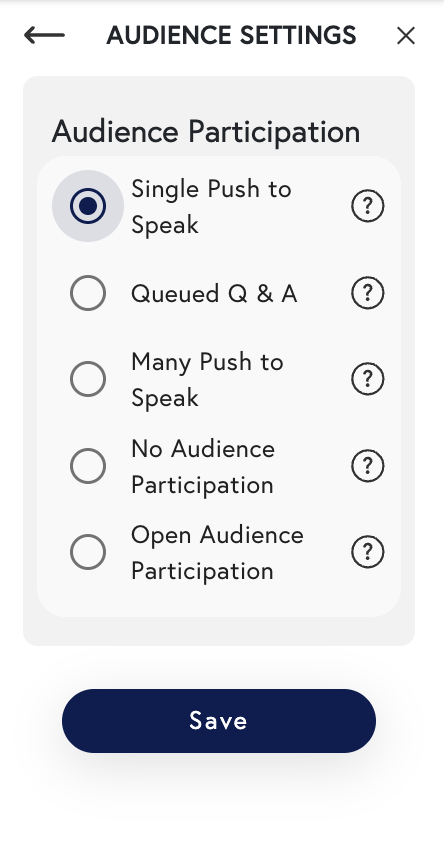
Choose how the audience participates
Under Audience Participation, select one option and click Save. Hover over the question mark next to an option to see its description.
When attendees can push to speak, they see a Speak button in their toolbar. In Queued Q & A, they see a Raise Hand button instead, described below.
Group conversations
The Group conversations toggle controls whether attendees can keep talking to the people in their audio group while the presentation runs. Turning it off mutes everyone in the audience and stops them from talking to each other. Some participation options need group conversations. If Group conversations is off, those options are disabled and show the tooltip “Turn Group Conversations on to enable this participation setting”.The Group conversations toggle is not shown on every account.
Queued Q & A
In Queued Q & A, attendees click Raise Hand to ask to speak. The host sees a Q&A panel with a Raised Hands list that shows each request and how long ago it was made.- Click the check mark next to a name to let that person speak to the room.
- Click the X to decline the request.
- Click Disable Q&A to turn the queue off.