

Changing Your Password from Profile Settings
If you know your current password, you can easily change it from your profile settings:- Access Settings: Click on the icon with your profile picture or your initials in the top-right corner of the Scoot interface.
- Go to My Settings: From the dropdown menu, select ” My Settings.” This will take you to your profile settings page.
- Find Change Password Section: Scroll down to the bottom section labeled ” Change Password.”
-
Enter Password Details:
- Enter your current password in the designated field.
- Enter your new desired password.
- Confirm your new password by entering it again.
- Save Changes: Click ” Save” at the top of the page to apply your new password.
Recovering a Forgotten Password
If you’ve forgotten your password, don’t worry! You can recover it using the password recovery tool: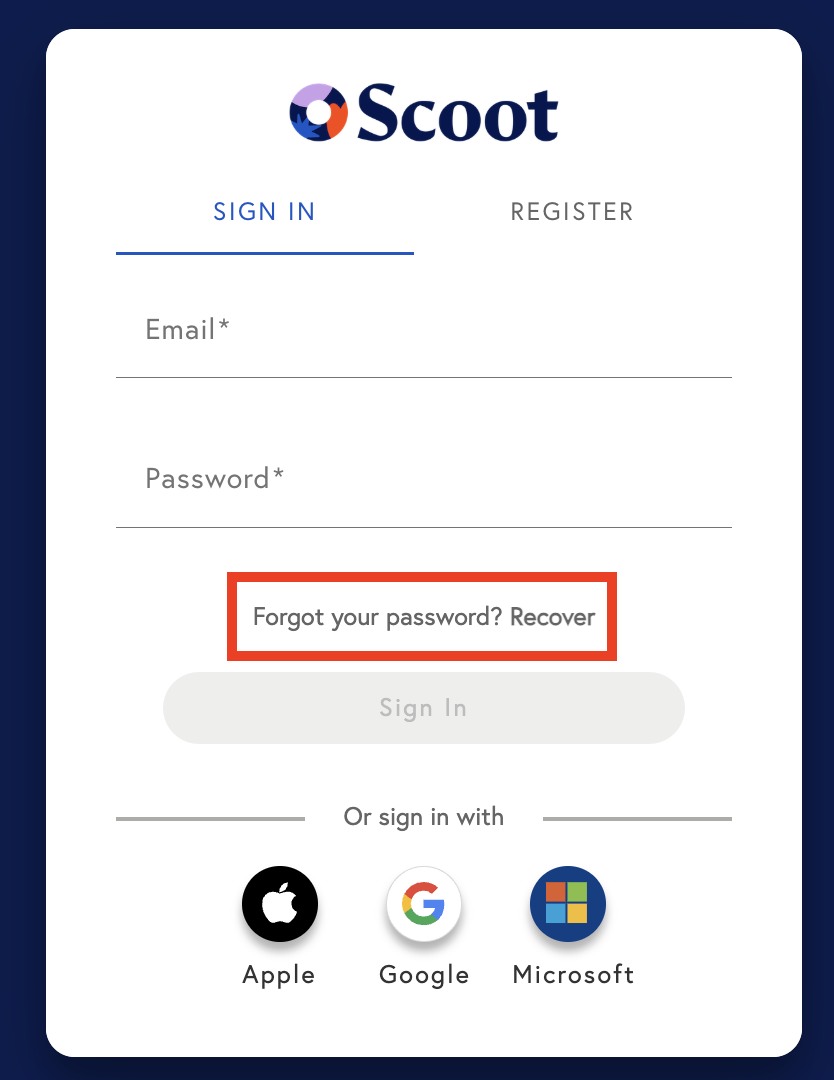
- Go to Scoot Sign-in: Navigate to the Scoot sign-in page at us.scoot.app.
- Initiate Recovery: Click on the ” Forgot Password” link (highlighted in red with “Forgot your password? Recover”).
- Follow the Steps: Follow the on-screen instructions and steps provided to complete the password recovery process and set a new password for your account.
Important Note for OAuth Accounts
If you created your Scoot account using an OAuth method (such as “Continue with Microsoft,” “Continue with Google,” or “Continue with Apple”), your Scoot access is managed through that external account. This means:- Scoot does not store your password for these accounts.
- To reset your password , you will need to go to the account provider (Microsoft, Google, or Apple) that you used to register for Scoot.
- Change your password using the methods provided by that specific provider. Once updated there, you will use your new password to sign into Scoot via the respective OAuth optio