

Add a Scoot meeting room to any Outlook calendar invite. Install the Scoot Engage for Outlook add-in once, then drop a Scoot room link into your events in seconds.
Overview
Scoot Engage for Outlook lets you add a Scoot video meeting room directly to your Outlook calendar events. Setup takes about two minutes and only needs to be done once — after that, every invite can host on Scoot. What you’ll need- An Outlook account (web or desktop)
- A Scoot account (sign in with Google, Microsoft, or Apple)
Step 1: Open the Apps menu and click “Add apps”
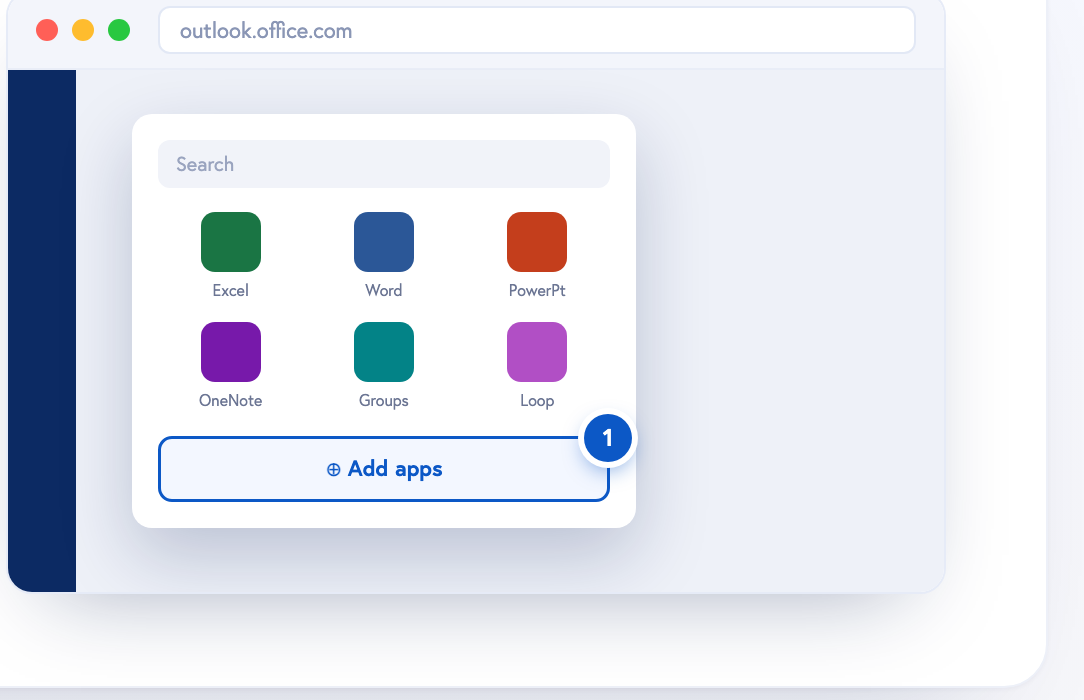 In Outlook, open the apps launcher on the left rail, then select Add apps to browse the store.
Step 2: Find Scoot Engage and click “Add”
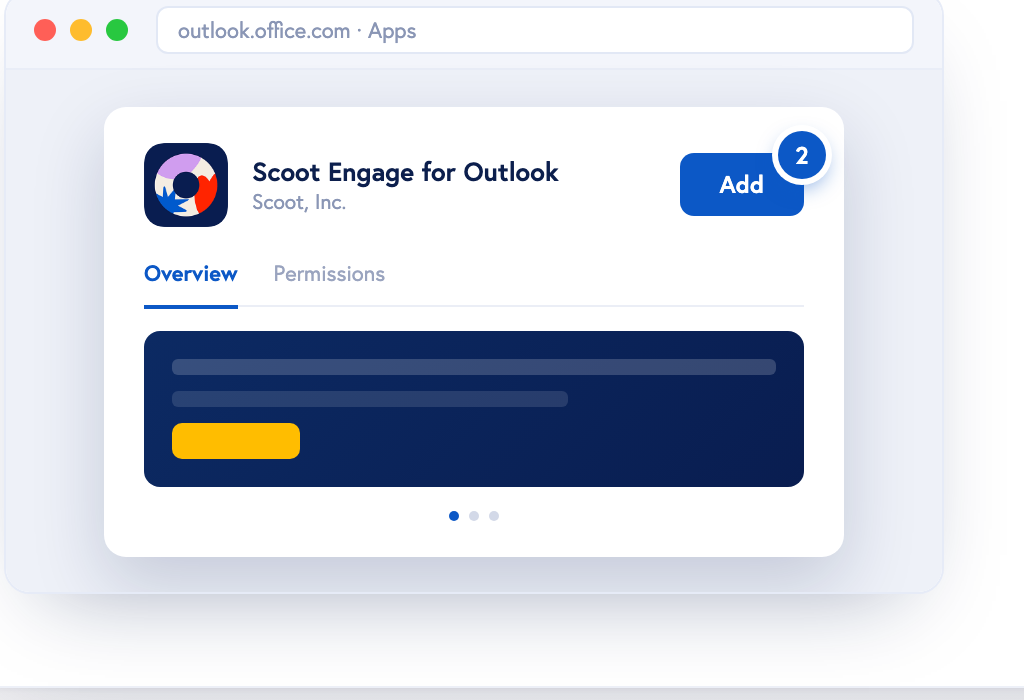 Search Scoot, open Scoot Engage for Outlook by Scoot, Inc., and click Add to install the add-in.
Step 3: Open the Scoot Engage panel
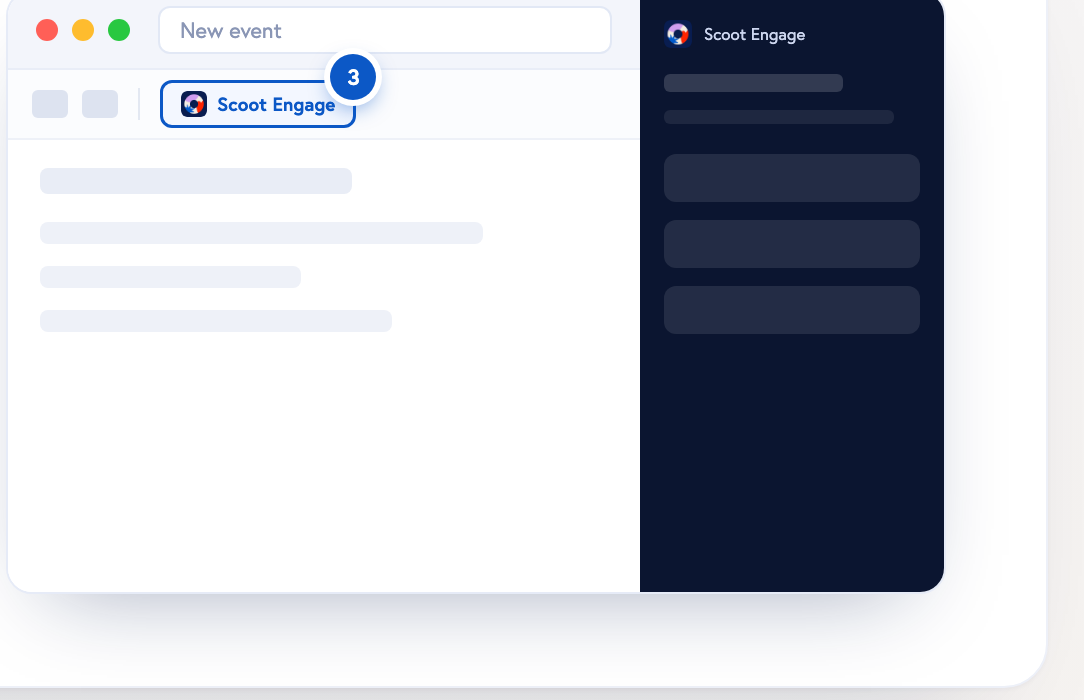 Start a New event in your calendar, then click Scoot Engage for Outlook in the event toolbar to open the side panel.
Step 4: Sign in to your Scoot account
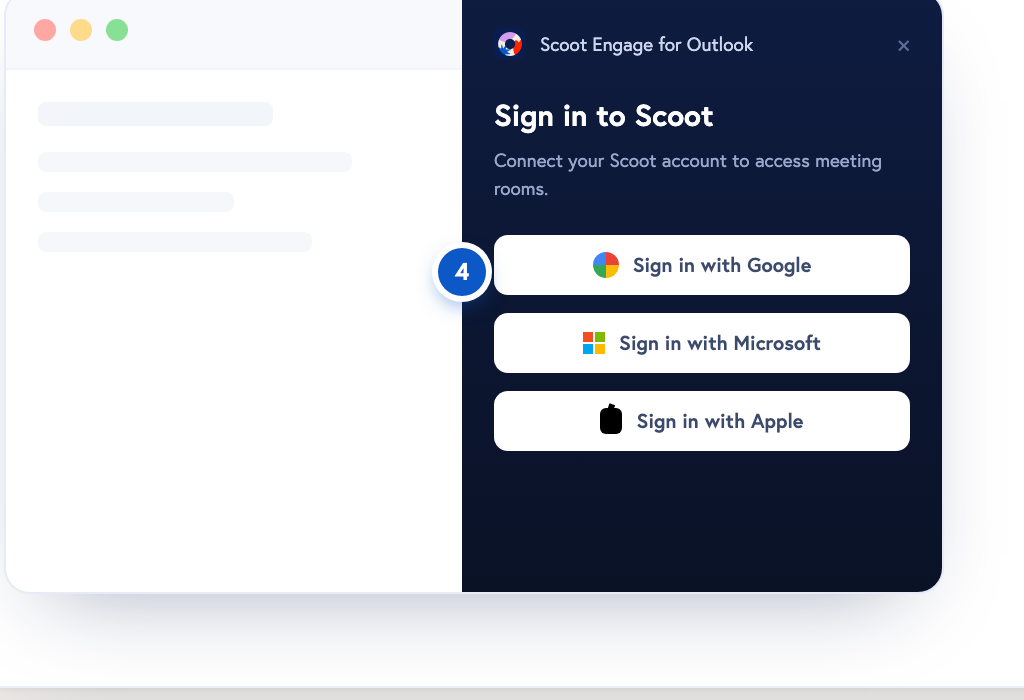 In the panel, sign in with Google, Microsoft, or Apple to connect your Scoot rooms.
Step 5: Pick a room and add it to the invite
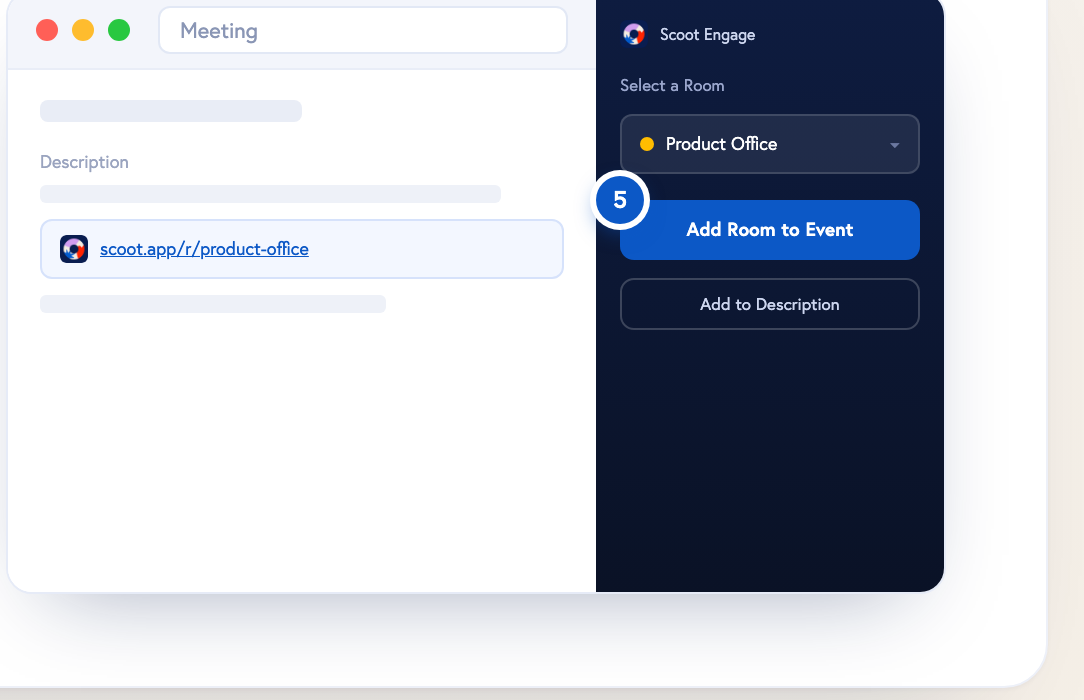 Choose a room, then click Add Room to Event (or Add to Description). Your Scoot room link drops right into the meeting — attendees can join straight from the calendar invite.
You’re all set
Setup is one-time. From now on, you can add a Scoot room to any Outlook event from the Scoot Engage panel.Need help?
- Docs & guides: docs.scoot.app
- Support: support@scoot.app