

Add a Scoot meeting room to any Google Calendar event. Install the Scoot for Google Workspace add-on once, then drop a Scoot room link into your events right from the Calendar side panel.
Overview
Scoot for Google Workspace lets you add a Scoot video meeting room directly to your Google Calendar events. Setup takes about two minutes and only needs to be done once — after that, every event can host on Scoot. What you’ll need- A Google Workspace or Gmail account
- A Scoot account (sign in with Google, Microsoft, or Apple)
Step 1: Find Scoot in the Workspace Marketplace
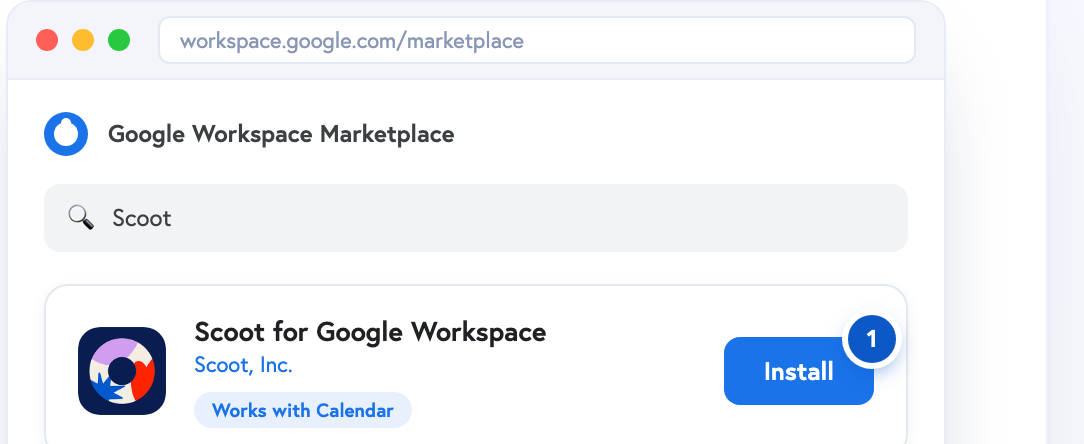 Open the Google Workspace Marketplace, search Scoot, and click Install on Scoot for Google Workspace by Scoot, Inc.
Step 2: Open the Scoot panel in Calendar
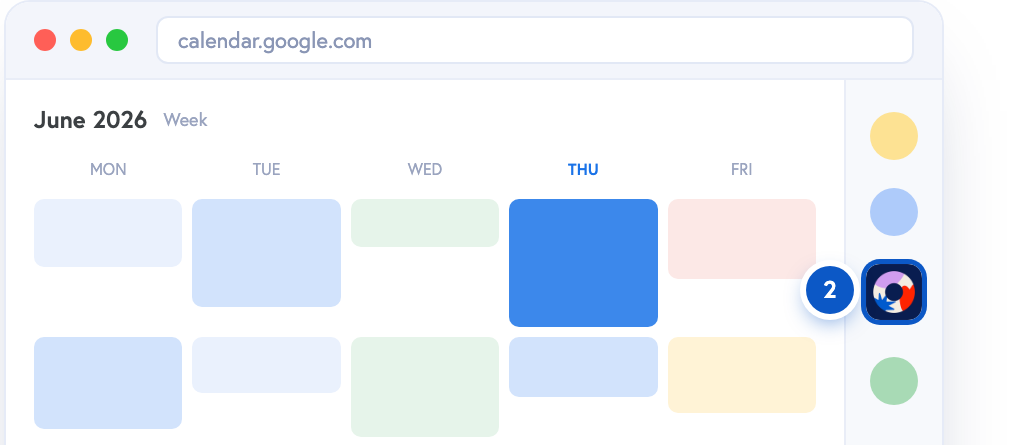 In Google Calendar, click the Scoot icon in the right side panel to launch the add-on.
Step 3: Sign in to your Scoot account
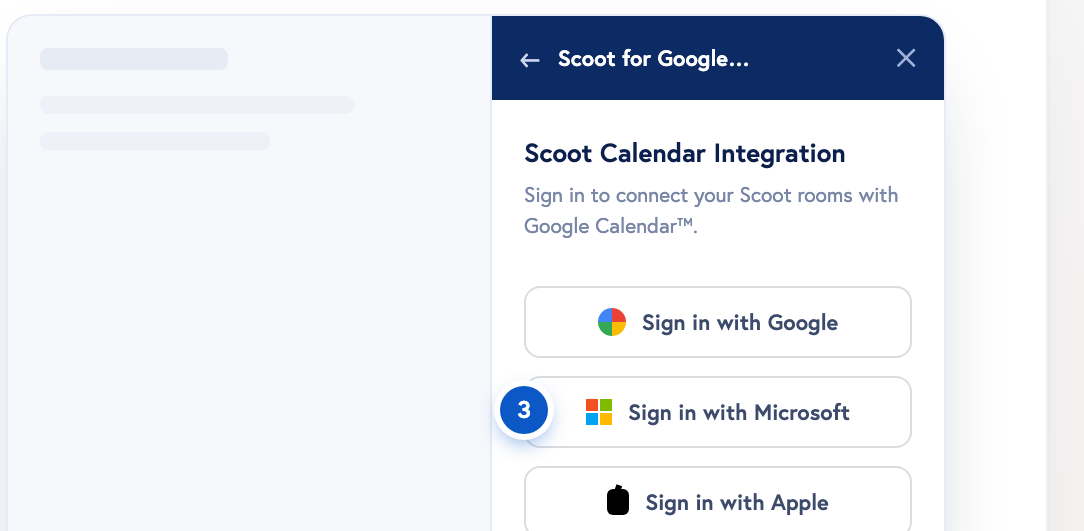 Sign in with Google, Microsoft, or Apple to connect your Scoot rooms to Calendar.
Step 4: Open an event and pick your room
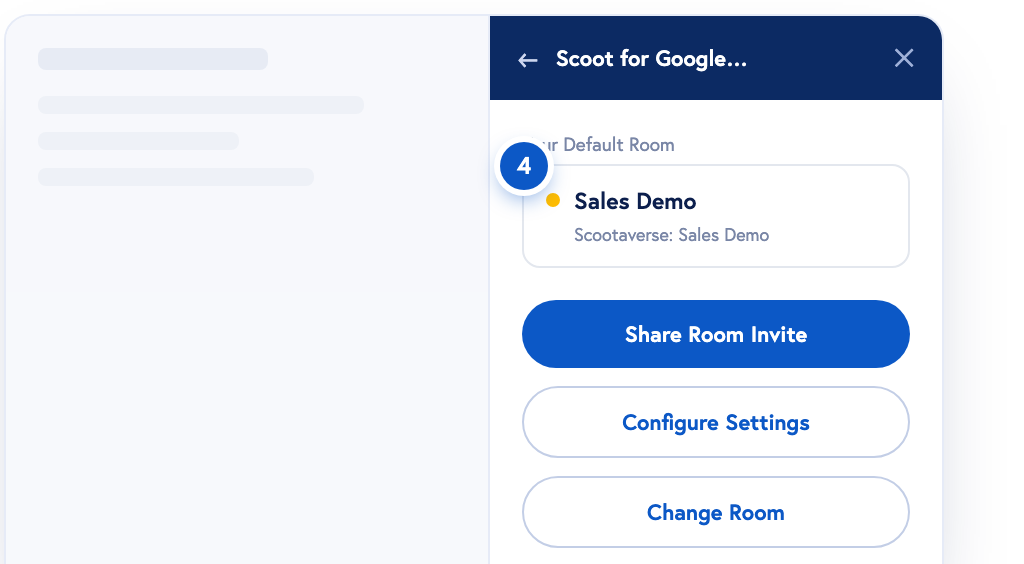 Open any event to see your Default Room, or click Change Room to choose a different Scoot space.
Step 5: Share the room invite
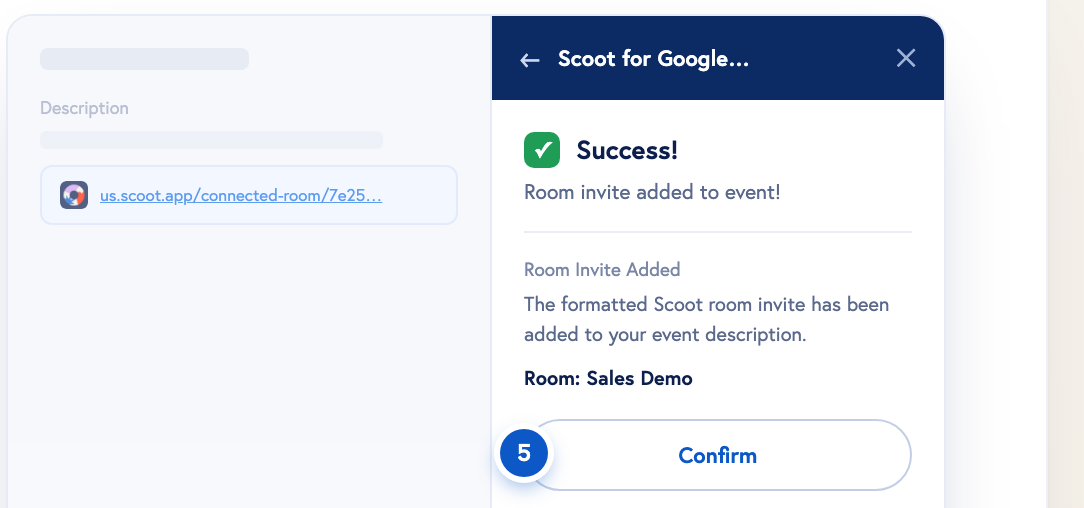 Click Share Room Invite and a formatted Scoot link drops straight into your event description. Click Confirm — attendees can now join from the calendar event.
You’re all set
Setup is one-time. From now on, you can add a Scoot room to any Google Calendar event from the Scoot side panel.Need help?
- Docs & guides: docs.scoot.app
- Support: support@scoot.app