

Join from a link
- Open the link in Chrome, Edge, Firefox or Safari, or in the Scoot desktop app.
- If you are signed in, you arrive in the waiting room. Check that your camera, microphone and speaker are working.
- Click Enter Room. If the host has added Smart Badge questions, click Continue, answer the questions, and then enter.

Join as a guest
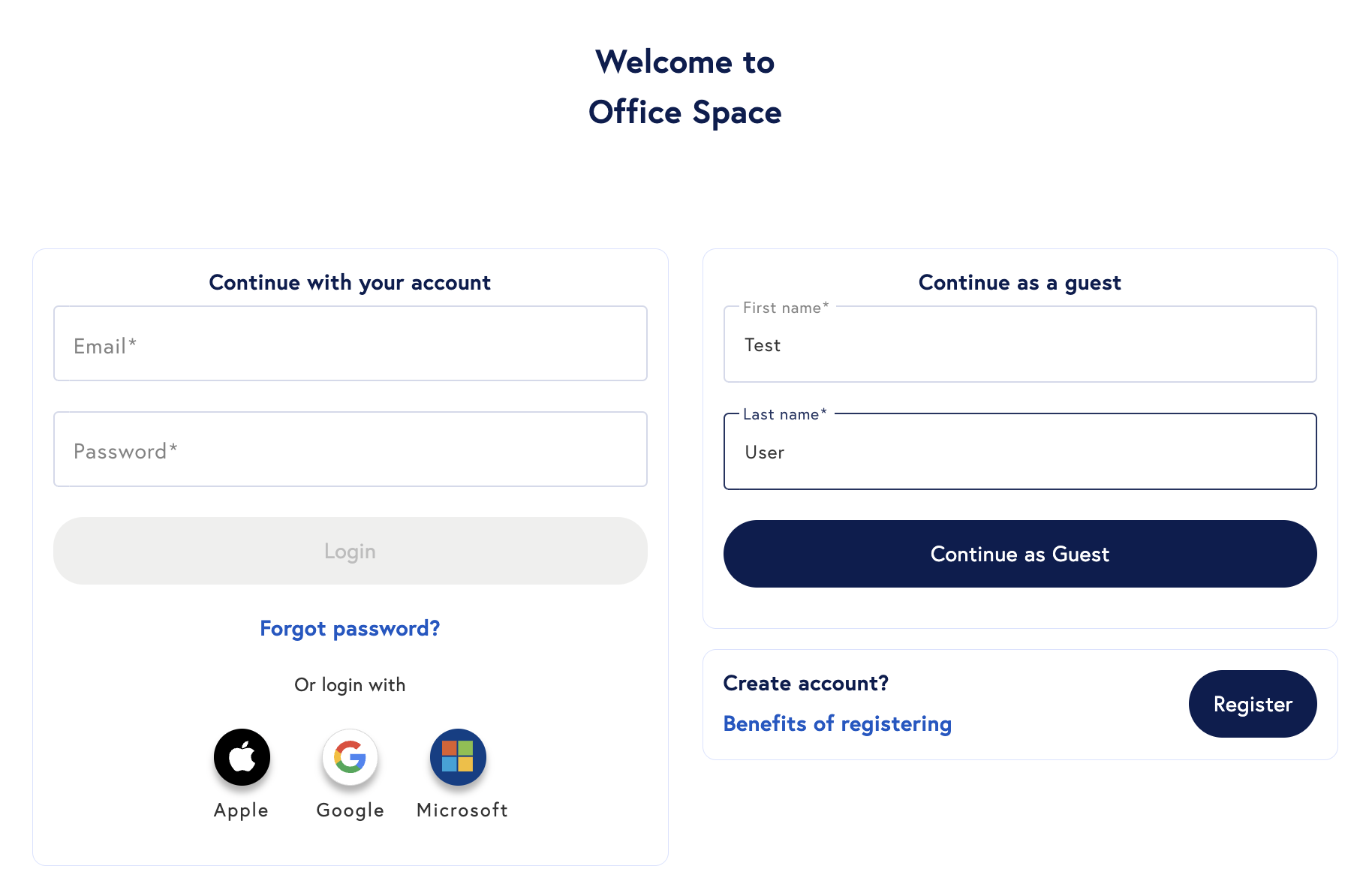
You don’t need an account to join a room, as long as the host allows guests. If you can’t join as a guest, contact the host.- Open the invitation link.
- Enter your First name and Last name.
- Click Continue as Guest.
Join on a phone or tablet
- iPhone and iPad: install the Scoot app from the App Store. Then tap the room link and it opens in the app. If you tap the link before installing the app, Scoot shows you where to download it; after installing, tap the link again.
- Android: open the room link in Chrome.
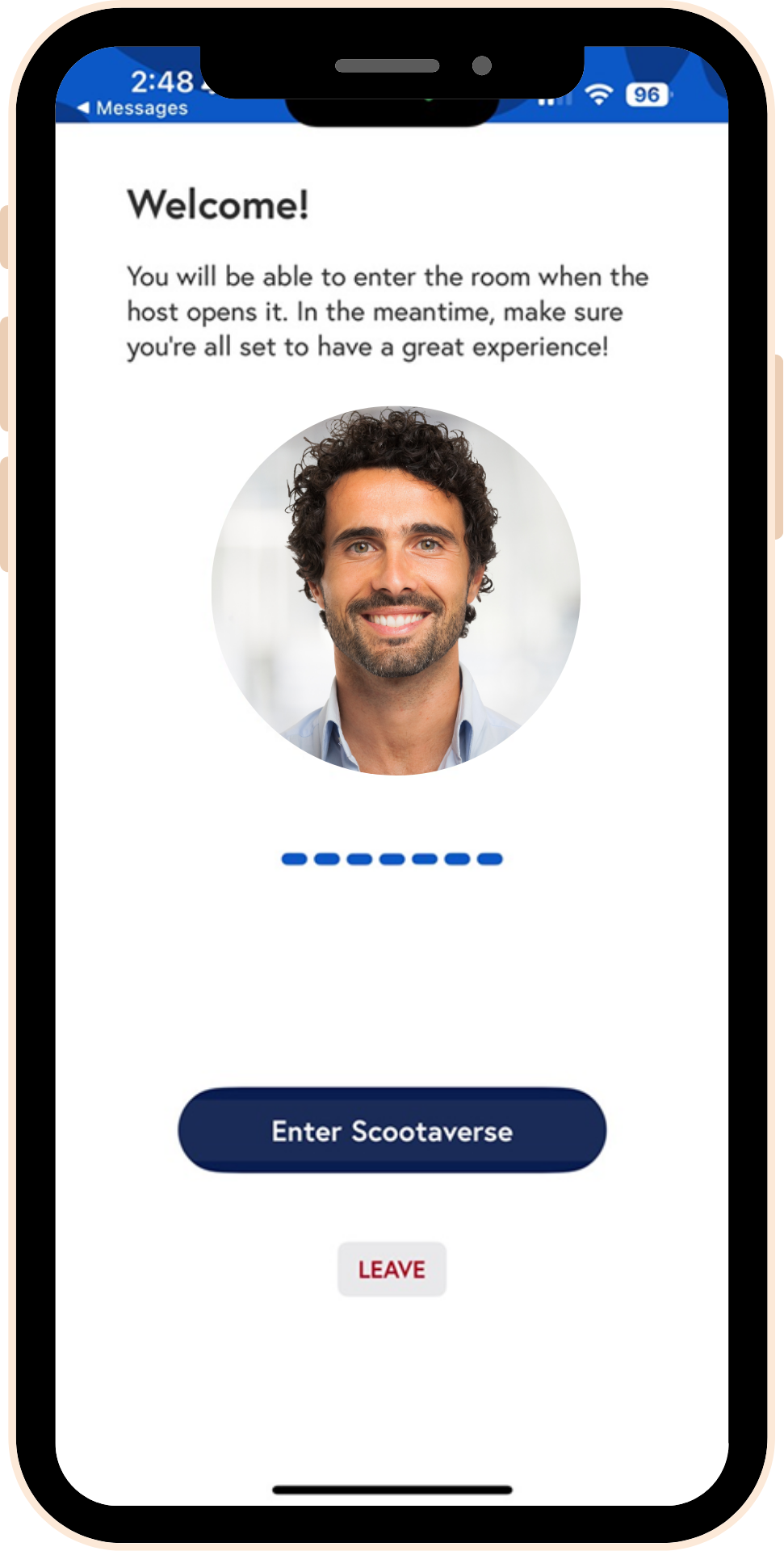 In the room on a phone, tap and hold to move, and use the minimap to see who is nearby. Pinch to zoom in and out.