

This guide shows you how to configure your camera, microphone, and speaker settings in Scoot, both in-room as well as from the waiting room as you enter the Scootaverse.
_Click on the type of browser you are using to see instructions that are relevant to you:
Browsers:Google Chrome
Edge
Safari
Mozilla Firefox
Google Chrome
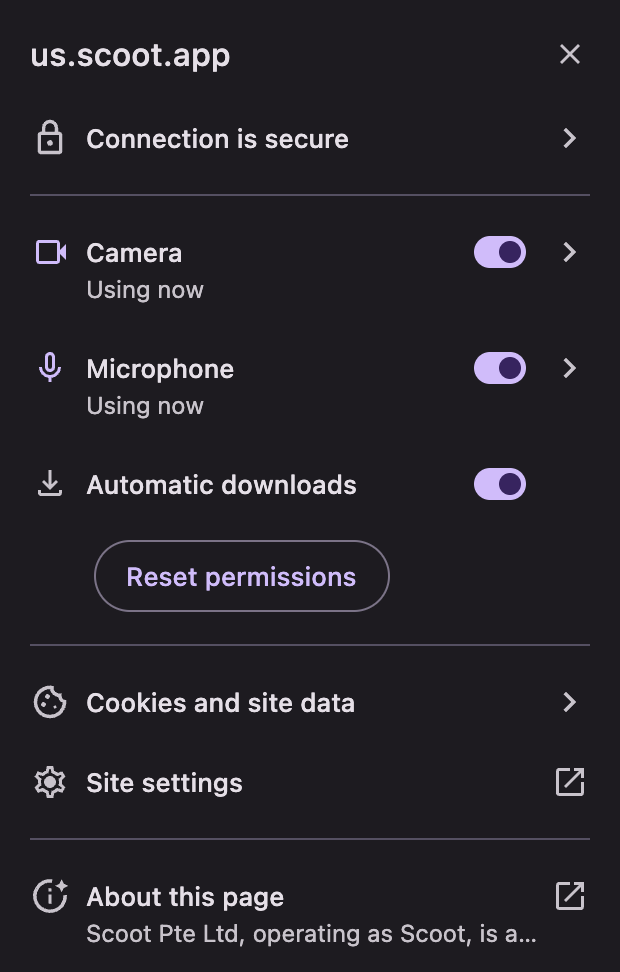
- If you are using Google Chrome, you should be able to enable your camera and mic by clicking on the lock icon in the top left-hand corner of your browser
-
Change your camera AND microphone settings to “allow” from the dropdown options
Now refresh the page and you should be good to go!
Edge
- If you are using Edge, you should be able to enable your camera and mic by clicking on the lock icon in the top left-hand corner of your browser
- Change your camera AND microphone settings to “allow” from the dropdown options
- Now refresh the page and you should be good to go!
Safari
- Open Safari Preferences.
- Navigate to Websites.
- Go to Camera and Microphone tabs.
- Change access to Allow.
- Restart Safari.
Mac OS
If after updating your Preferences in Safari, you are still experiencing issues, you may need to update the Security and Privacy settings on your Mac computer to allow access to the microphone and camera from your desired browser. To do this:- Click on System Preferences at the bottom of your Screen
- Click on ‘Security and Privacy’
- Scroll until you get to your Camera and Microphone settings
- Make sure your desired browser has access to your Camera and Microphone (these are done separately)
- Restart you browser
Mozilla Firefox
- Open Firefox and go to the desired site.
- A confirmation pop-up displays asking if you want to share your device’s camera and microphone with that site.
- Select the Remember this decision checkbox if you want Firefox to remember your selections for this site so that they can be used by default in the future.
- Click the Allow button if you want to share these devices with the site.
Failed to Initialize Devices Error
If you have ever tried to enter a Room and gotten an error message that states “Failed to Initialize Devices”, another application on your device may be using your camera or microphone. Here are some tips to help you resolve this error:- Some PCs do not support sharing your camera and microphone across multiple apps. Close out of all applications that may have access to your camera or microphone then refresh the page
- Check that your camera and microphone permissions are set to “allow” in your browser settings
- Make sure your camera and microphone are both on while joining a Room. You can turn them off once inside!